
Creating your own snippets
In our earlier introduction to snippets, we learned about the snippets provided by core and community packages. But what should you do if a package doesn’t include a snippet you think might be useful? Luckily, it’s incredibly easy to add your own snippets.
There is a text file in your ~/.pulsar%USERPROFILE%\.pulsar directory called snippets.cson that contains all your custom snippets that are loaded when you launch Pulsar. You can also easily open up that file by selecting the Edit > SnippetsPulsar > Snippets…File > Snippets menu item.
Snippet format
Let’s look at how to write a snippet. The basic snippet format looks like this:
'.source.js':
  'console.log':
    'prefix': 'log'
    'body': 'console.log(${1:"crash"});$2'
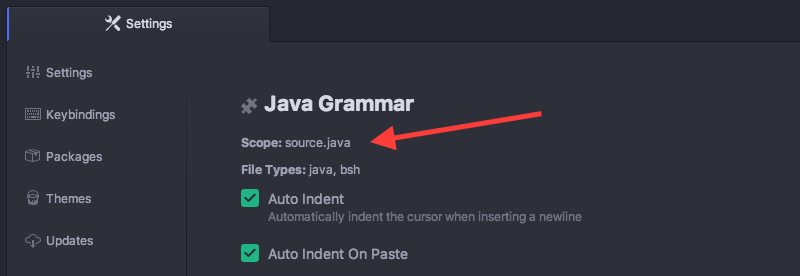
The leftmost keys are the scope selectors where these snippets should be active. One way to determine the scope selector for a language is to go to the settings page for its package, then look for the "Scope" string.
For example, if we wanted to add a snippet that would work for Java files, we would look up the language-java package in our settings view… which tells us the scope is source.java. For reasons not worth explaining right now, we’ll prepend a . to that value, leaving us with .source.java.
The next level of keys are the snippet names. These are used for describing the snippet in a more readable way in the snippet menu. You can name them whatever you want.
Under each snippet name is a prefix that should trigger the snippet and a body to insert when the snippet is triggered.
Each $ followed by a number is a tab stop. Tab stops are cycled through by pressing Tab once a snippet has been triggered. In our example, the first tab stop has a slightly different syntax because it’s defining a placeholder value of "crash"; the second tab stop uses simpler syntax because it has no placeholder.
A snippet can define multiple tab stops with the same number; they’ll all be visited at the same time, creating multiple cursors.
The above example adds a log snippet to JavaScript files that would expand to:
console.log("crash");The string "crash", as the placeholder for tab stop 1, would start out selected, so that typing any text would immediately replace it. Pressing Tab while at the first tab stop would move the cursor to the second tab stop, just after the ;.
Tab stops are “one-indexed,” meaning the first tab stop should use $1. The “zeroth” tab stop, signified by $0, is special: it’s always the last tab stop visited. When you reach the zeroth tab stop, the snippet exits its special “mode” and editor behavior reverts to normal. The zeroth tab stop cannot have a placeholder.
The above example could’ve therefore been written as
'.source.js':
  'console.log':
    'prefix': 'log'
    'body': 'console.log(${1:"crash"});$0'
and would’ve behaved the same way.
Tab stops don’t have to be ordered from left to right. No matter where they occur in a snippet body, tab stops will be visited starting with $1, ordered from lowest number to highest number, and $0 will always be the final tab stop.
Multi-line snippet body
You can also use CoffeeScript multi-line syntax using """ for larger templates:
'.source.js':
  'if, else if, else':
    'prefix': 'ieie'
    'body': """
      if (${1:true}) {
        $2
      } else if (${3:false}) {
        $4
      } else {
        $5
      }
    """
As you might expect, there is a snippet to create snippets. If you open up a snippets file and type snip and then press Tab, you will get the following text inserted:
'.source.js':
  'Snippet Name':
    'prefix': 'hello'
    'body': 'Hello World!'
Just fill that bad boy out and you have yourself a snippet. As soon as you save the file, Pulsar should reload the snippets and you will immediately be able to try it out.
Multiple snippets per source
You can see below the format for including multiple snippets for the same scope in your snippets.cson file. Just include the snippet name, prefix, and body keys for additional snippets inside the scope key:
'.source.gfm':
'Hello World':
'prefix': 'hewo'
'body': 'Hello World!'
'Github Hello':
'prefix': 'gihe'
'body': 'Octocat says Hi!'
'Octocat Image Link':
'prefix': 'octopic'
'body': ''Again, see Configuring with CSON for more information on CSON key structure and non-repeatability.
Advanced snippet features
Snippets in Pulsar support nearly all of the features of snippets in TextMate (the editor that invented them). They also support the vast majority of snippet features added by Visual Studio Code and present in the Language Server Protocol specification.
Transformed tab stops
We mentioned earlier that you can define multiple tab stops with the same number. By default, this will create multiple cursors when you reach that tab stop, so that you can type something once and have it appear in multiple places.
But you can also define one tab stop that transforms the input of another.
'.source.js':
  'banner':
    'prefix': 'banner'
    'body': '// $1\n// ${1/./=/g}'
The second instance of the $1 tab stop uses a syntax similar to that of the Unix sed utility. In this case, it will match any character of the input (the . pattern) and replace it with the literal character =. The g flag at the end of the pattern is how we make this substitution happen with every character, not just on the first match.
This allows us to type banner, press Tab, type SOMETHING, and have a nicely formatted “banner” comment!
// SOMETHING
// =========
Let’s look at another example:
'.text.html':
  'element':
    'prefix': 'elem'
    'body': '<${1:div}>$0</${1/\s(.*)//}>'
This one is a bit more complex, but it lets us define any HTML element and have whatever tag name we type get mirrored to the closing tag — but only the tag name. The transformation will substitute an empty string for the first space in the input, along with any text after that first space.
Hence we can type elem, press Tab, type article class="primary", press Tab again, and have this output:
<article class="primary"></article>A tab stop can have any number of corresponding “transformed” tab stops, but it must have at least one “ordinary” tab stop — or else there’d be no input to transform.
Snippet variables
Certain values can be injected into the content of any snippet via variables. For instance, here’s a snippet that includes the contents of the clipboard:
'.text.html':
  'link with clipboard URL':
    'prefix': 'ahref'
    'body': '<a href="$CLIPBOARD">$1</a>$0'
This allows us to type ahref, press Tab, and have the href attribute point to any URL that may have been in our clipboard.
<a href="https://example.com"></a>There are many other variables available, including…
TM_FILENAME: The name of the current file (foo.rb).TM_FILENAME_BASE: The name of the current file, but without its extension (foo).TM_FILEPATH: The entire path on disk to the current file.TM_CURRENT_LINE: The entire current line that the cursor is sitting on.TM_CURRENT_WORD: The entire word that the cursor is within or adjacent to.CURRENT_YEAR,CURRENT_MONTH, et cetera: referneces to the current date and time in various formats.
The full list of supported variables can be found in the README of the snippets package.
Variable transformations
Variables can be transformed in two ways: either via the same sed-style transformations that are available for tab stops, or via simpler flag-based transformations for common use cases.
For example:
${CLIPBOARD/upcase}will convert the contents of the clipboard to uppercase.${TM_SELECTED_TEXT/pascalcase}will convert the input to camel-case: for instance,foo barwould becomefooBar.${TM_CURRENT_LINE/ /_/g}will convert every space in the input to an underscore.
Mapping snippets to commands
Snippets support a variable called $TM_SELECTED_TEXT that represents — as you may have guessed — the text that was selected at the moment that the snippet was expanded. But a snippet is expanded by typing a prefix and pressing Tab, right? How can there be any selected text at that moment?
The Tab-trigger style of invocation has always been the main way to use snippets. But TextMate (the editor that invented snippets) also allowed the user to invoke a snippet via a keybinding. Pulsar now supports this style of snippet invocation via the command key in a snippet definition.
If command is present, it specifies a command name that can trigger the snippet. Command names in Pulsar take the format foo:bar — where foo is typically the package name, and bar is the name of the command. The command key should contain only the second part of the command name, leaving snippets to build the full command name.
So let’s revisit our last snippet example. We could rewrite it as a snippet that can be invoked to turn selected text into a link:
'.text.html':
  'wrap text in link with clipboard URL':
    'command': 'wrap-text-in-link-with-clipboard-url'
    'body': '<a href="${1:CLIPBOARD}">${2:TM_SELECTED_TEXT}</a>$0'
This snippet definition has a command key instead of a prefix key (though it’s also possible for a snippet to have both). Since we’re defining this snippet in our own snippets.cson file, it’s available as snippets:wrap-text-in-link-with-clipboard-url, and would be formatted for display in the command palette as Snippets: Wrap Text In Link With Clipboard Url.
We could stop here and invoke the snippet via the command palette whenever we wanted. But we can also go further and bind it to a key like we would with any other command: by editing our keymap.cson.
'atom-text-editor':
  'ctrl-alt-l': 'snippets:wrap-text-in-link-with-clipboard-url'
More info
The snippets functionality is implemented in the snippets package.
For more examples, see the snippets in the language-html and language-javascript packages.