
Language-specific configuration settings
Some settings can be specified differently for different file types. For example, you may want Pulsar to soft-wrap Markdown files, use two-space tabs for Ruby files, and use four-space tabs for Python files.
Many of the settings in the editor namespace can be scoped to an editor’s language:
editor.autoIndent
editor.autoIndentOnPaste
editor.invisibles
editor.nonWordCharacters
editor.preferredLineLength
editor.scrollPastEnd
editor.showIndentGuide
editor.showInvisibles
editor.softWrap
editor.softWrapAtPreferredLineLength
editor.softWrapHangingIndent
editor.tabLength
Language-specific settings in the settings view
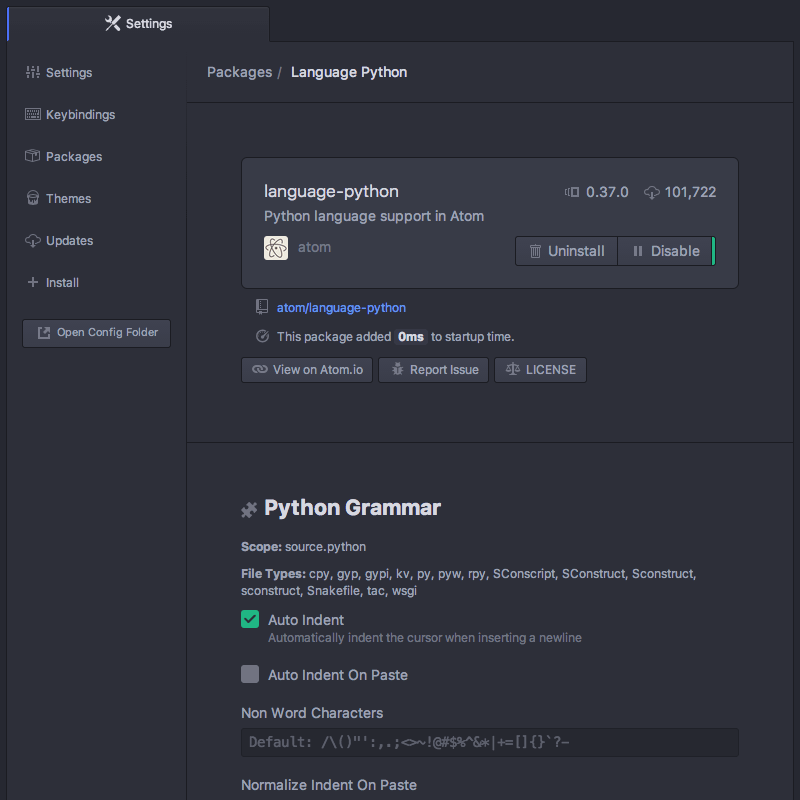
The editor settings listed above can be customized in the settings-view UI. Open your settings, select the Packages pane, search for the language of your choice, and click on its Settings button.
Language-specific settings in your config file
Most other language-specific settings cannot be configured in the UI, but you can still attempt to apply such overrides by editing your config.cson directly.
To open your config.cson, run the Application: Open Your Config setting or press Ctrl+Shift+PCmd+Shift+P.
Global settings are under the * key, and each language can have its own top-level key. This key is the language’s scope. Language-specific settings take precedence over anything set in the global section for that language only.
'*': # all languages unless overridden
  'editor':
    'softWrap': false
    'tabLength': 8

'.source.gfm': # markdown overrides
  'editor':
    'softWrap': true

'.source.ruby': # ruby overrides
  'editor':
    'tabLength': 2

'.source.python': # python overrides
  'editor':
'tabLength': 4Finding a language’s scope name
In order to write these overrides effectively, you’ll need to know the scope name for the language.
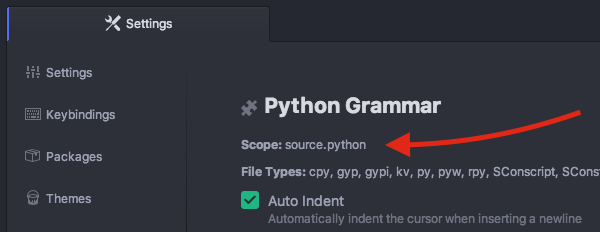
One way to look this up is an approach we’ve mentioned before. The scope name is shown in the settings view for each language. Click on "Packages" in the navigation on the left, search for the language of your choice, select it, and you should see the scope name under the language name heading:
Another way to find the scope for a specific language is to open a file of its kind and choose Editor: Log Cursor Scope in the command palettepress Alt+Cmd+P to show all scopes for the current position of the cursor. The first scope in the list is always the root language scope for this kind of file. Each subsequent scope in the list represents a progressively more specific region of the buffer.
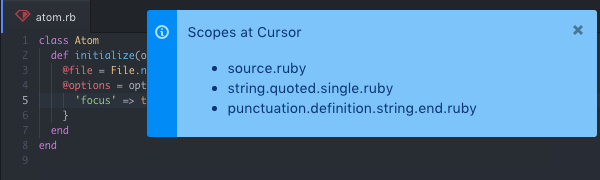
These scopes can be especially useful to style the editor, since they can also be used as class names in your stylesheet.
Can everything be overridden?
Technically, any setting can be specified to an arbitrary level of detail: not just by language, but using any scope selector of any complexity.
In practice, though, the onus falls on whatever is consuming the setting to read it at the same level of specificity.
Suppose you set an override for a setting that is consumed by a package:
'.source.python':
  'some-package':
    'some-setting': 4
For this override to be recognized, the some-package package would have to consider scope when reading some-setting. It may be written to read the setting only globally. It’s not easily possible for Pulsar to detect how the setting will be read in the future, so “can setting X be overridden?” isn’t a question that can be answered by Pulsar itself.
If you’re unsure if it will work, give it a try. If it doesn’t work, open an issue with the package’s author and politely request this feature.