
Developing a theme
Pulsar’s interface is rendered using HTML, and it’s styled via Less which is a superset of CSS. Don’t worry if you haven’t heard of Less before; it’s just like CSS, but with a few handy extensions.
Pulsar supports two types of themes: UI and Syntax. UI themes style elements such as the tree view, the tabs, drop-down lists, and the status bar. Syntax themes style the code, gutter and other elements inside the editor view.
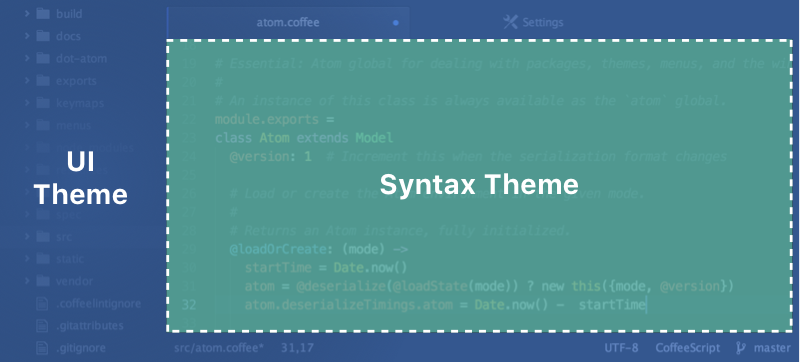
Themes can be installed and changed from the settings view — which you can open by selecting the Edit > Preferences Pulsar > Preferences File > Preferences menu, and clicking the "Install" or "Themes" tab on the left-hand navigation.
Getting started
Themes are pretty straightforward, but it’s still helpful to be familiar with a few things before starting:
- Less is a superset of CSS, but it has some really handy features like variables. If you aren’t familiar with its syntax, take a few minutes to familiarize yourself.
- You may also want to review the concept of a
package.json(as covered in Pulsarpackage.json). This file is used to help distribute your theme to Pulsar users. - Your theme’s
package.jsonmust contain athemekey with a value ofuiorsyntaxfor Pulsar to recognize and load it as a theme. - You can find existing themes to install or fork in Pulsar Package Registry.
Creating a syntax theme
Let’s create your first theme.
To get started, press Ctrl+Shift+P Cmd+Shift+P and start typing Generate Syntax Theme to generate a new theme package. Select Package Generator: Generate Syntax Theme, and you’ll be asked for the path where your theme will be created. Let’s call ours motif-syntax.
Pulsar will display a new window, showing the motif-syntax theme, with a default set of folders and files created for us. If you open the Settings View with Ctrl+,Cmd+, and click the Themes tab on the left, you’ll see the "Motif" theme listed in the "Syntax Theme" drop-down. Select it from the menu to activate it. Now, when you open an editor, you should see your new motif-syntax theme in action.
Open up styles/colors.less to change the various color variables which have already been defined. For example, turn @red into #f4c2c1.
Then open styles/base.less and modify the various selectors that have already been defined. These selectors style different parts of code in the editor such as comments, strings and the line numbers in the gutter.
As an example, let’s make the .gutter background-color into @red.
Reload Pulsar by pressing Alt+Ctrl+RAlt+Ctrl+Cmd+L (or running the Window: Reload command) to see the changes you made reflected in your Pulsar window. Pretty neat!
Creating a UI theme
To create a UI theme, do the following:
- Fork the ui-theme-template
- Clone the forked repository to the local filesystem
- Open a terminal in the forked theme’s directory
- Open your new theme in a dev mode Pulsar window: run
pulsar --dev .in the terminal or use the View > Developer > Open in Dev Mode menu - Change the name of the theme in the theme’s
package.jsonfile - Name your theme end with a
-ui, for examplesuper-white-ui - Run
pulsar -p link --devto symlink your repository to~/.pulsar/dev/packages%USERPROFILE%\.pulsar - Reload Pulsar using Alt+Ctrl+R Alt+Cmd+Ctrl+L
- Enable the theme via the “UI Theme” drop-down menu in the “Themes” tab of the settings view
- Make changes! Since you opened the theme in a dev mode window, changes will be instantly reflected in the editor without having to reload.
Theme variables
UI themes must provide a ui-variables.less file; syntax themes must provide a syntax-variables.less file. These files contain predefined variables that packages use so that useful values can be exposed.
These files in the Pulsar repository define default values for certain variables:
These default values will be used as fallbacks in case a theme doesn’t define its own variables.
Use in user customizations
Suppose you want the async modifier on JavaScript functions to be colored like a keyword. You could edit your user stylesheet as follows:
@import "syntax-variables";

.syntax--source.syntax--js {
  .syntax--storage.syntax--modifier.syntax--async {
    color: @syntax-color-keyword;
  }
}
You don’t have to look up the specific color that your syntax theme uses for keywords! You can use this variable because it’s part of the syntax-variables.less contract. And it’s designed to be portable so that you won’t have to change the value if you change syntax themes.
Use in packages
Community packages can also use these values to deliver theme-appropriate editor decorations and user interfaces. In any of your package’s .less files, you can access the theme variables by importing the ui-variables or syntax-variables file from Pulsar.
If you’re writing a community package that isn’t a theme, you might have to use CSS to lay out some interface elements. It’s fine to use structural styling (flexboxes, grids, positioning, et cetera), but your package should avoid specifying colors, padding sizes, or any measurements in absolute pixels. Why? Because those are the concerns of a UI theme!
Likewise, if your package adds decorations to source code within a text editor, you don’t want to hard-code any elements that will clash with the user’s syntax theme.
Instead, your package should use the theme variables. If you follow this guideline, your package will look good out of the box with any theme!
Here are two example .less files illustrating how a package can use ui-variables and syntax-variables:
@import "ui-variables";

.my-selector {
	background-color: @base-background-color;
	padding: @component-padding;
}
@import "syntax-variables";
.my-selector {
background-color: @syntax-background-color;
}Development workflow
There are a few tools to help make theme development faster and easier.
Live reload
Reloading by pressing Alt+Ctrl+RAlt+Cmd+Ctrl+L after you make changes to your theme is less than ideal. That’s why Pulsar supports live updating of styles on Pulsar windows in dev mode through the dev-live-reload package.
To launch a dev mode window:
- open your theme directory in a dev window by selecting the View > Developer > Open in Dev Mode menu item; or
- launch Pulsar from the terminal with
pulsar --dev.
If you’d like to reload all the styles at any time, you can use the shortcut Alt+Ctrl+RAlt+Cmd+Ctrl+L.
Developer tools
Pulsar is based on the Chromium browser and supports its developer tools. You can open them by selecting the View > Developer > Toggle Developer Tools menu, or by using the Ctrl+Shift+IAlt+Cmd+I.
The dev tools allow you to inspect elements and take a look at their CSS properties.
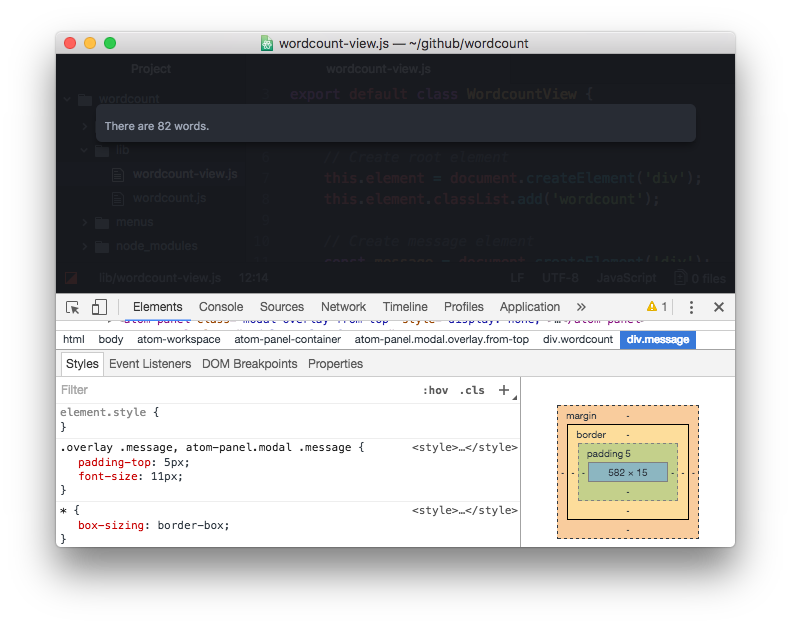
Check out Google’s extensive tutorial for an introduction.
Pulsar styleguide
If you are creating an UI theme, you’ll want a way to see how your theme changes affect all the components in the system. The styleguide is a page that renders every component Pulsar supports.
To open the Styleguide, open the command palette with Ctrl+Shift+PCmd+Shift+P and find the Styleguide: Show command, or use the shortcut Ctrl+Shift+GCmd+Ctrl+Shift+G.
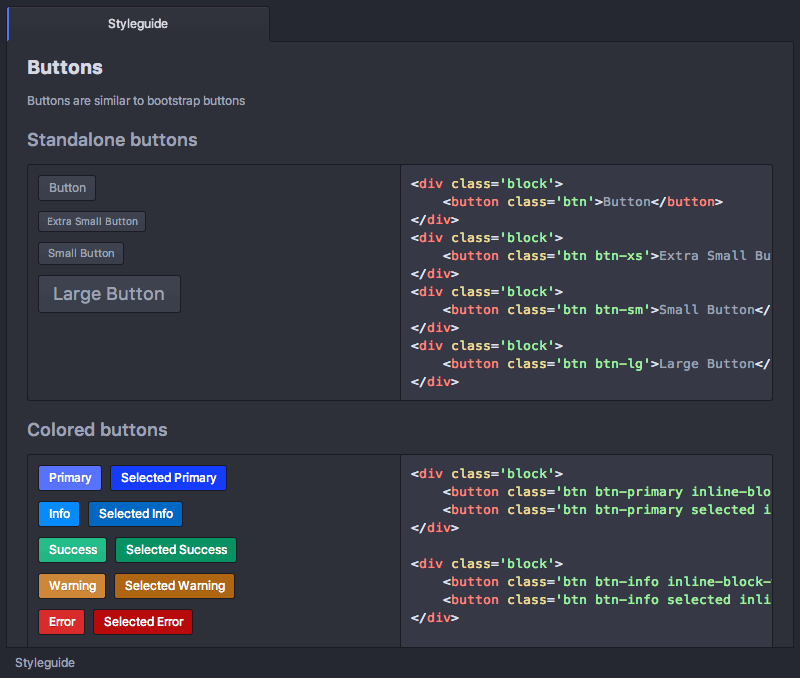
If you’re editing your UI theme in dev mode, the elements shown in the styleguide will update in real time when you make changes, just like all other UI elements in the window.
Side by side
Sometimes when creating a theme (or package) things can go wrong and the editor becomes unusable. For instance: the text and background might accidentally use the same color, or a critical element might get hidden or pushed out of sight.
To avoid having to open Pulsar in “normal” mode to fix the issue, it’s advised to open two Pulsar windows: one for making changes and one in dev mode to see the changes getting applied.
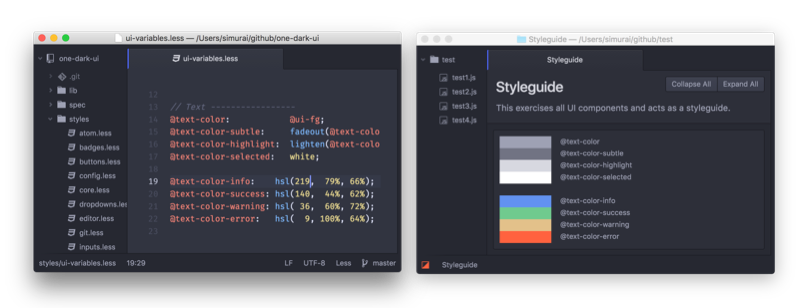
Make changes on the left, see the changes getting applied in dev mode on the right.
Now if you mess up something, only the window in dev mode will be affected and you can easily correct the mistake in your “normal” window.
Publish your theme
Once you’re happy with your theme and would like to share it with other Pulsar users, it’s time to publish it.
Follow the steps on the Publishing page. The example used is for the Word Count package, but publishing a theme works exactly the same.