
Scoped settings, scopes and scope descriptors
Pulsar supports language-specific settings. For instance, you can choose to enable soft-wrap for Markdown files and disable it for all other files; or you can set the tab length to 4 for Python files and 2 for everything else.
Language-specific settings are a subset of something more general we call scoped settings. Scoped settings allow targeting down to a specific syntax token type. For example, you could conceivably set a setting to target only Ruby comments, only code inside Markdown files, or even only JavaScript function names.
Scope names in syntax tokens
The scope system is one of the many systems that Pulsar (and Atom before it) inherited from TextMate. Here’s how it works:
- The entire contents of a source file has a scope name specific to that language: for instance,
source.jsortext.html.basic. - Regions of the source file might have their own scope names: for instance,
meta.class.jsorentity.name.tag.body.html. - Those regions might have further scope names defined inside them: for instance,
entity.name.function.jsorpunctuation.definition.tag.begin.html.
As a result, a given position in a source code file may contain a cascade of scope names, moving from the general to the specific.
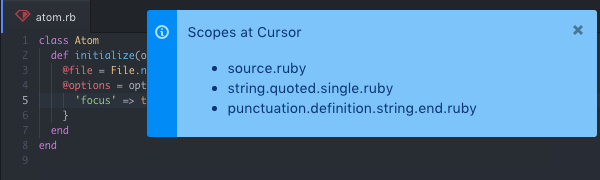
You can see this yourself by placing a cursor in one of your own buffers and invoking the Editor: Log Cursor Scope command from the command palette.
In Pulsar, scope names work just like CSS classes. In fact, in the editor, scope names are implemented as CSS classes.
Take this piece of JavaScript:
function functionName() {
	console.log("Log it out");
}
In the dev tools, the first line’s markup looks like this.
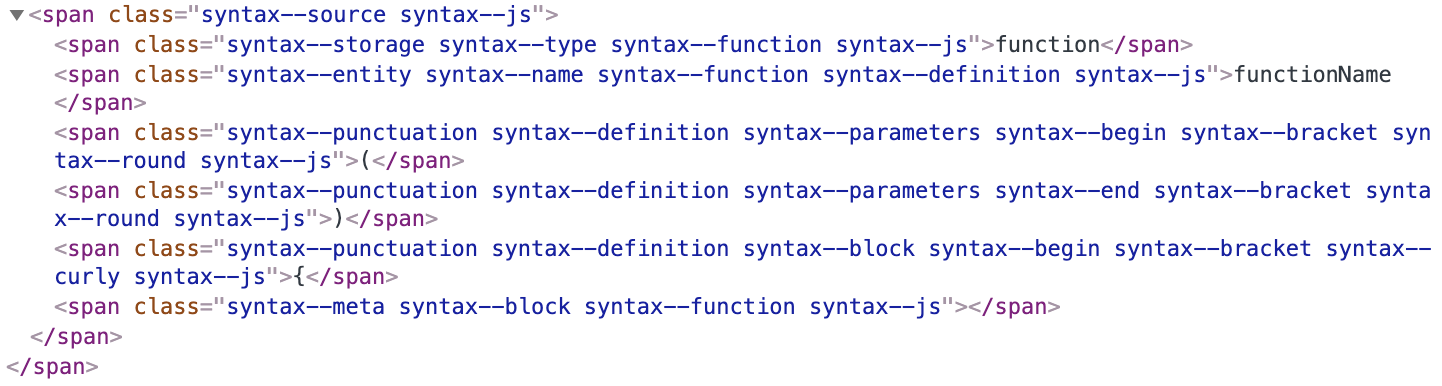
You can see that each segment of a scope name is prepended with syntax-- to minimize the chances of naming collisions, but the effect is the same.
All the class names on the spans are scope names. Any scope name can be used to target a setting’s value.
Scope selectors
Scope selectors allow you to target specific tokens just like a CSS selector targets specific nodes in the DOM. Some examples:
'.source.js' # selects all javascript tokens
'.source.js .function.name' # selects all javascript function names
'.function.name' # selects all function names in any language
Config::set accepts a scopeSelector. If you wanted to create a scoped setting dynamically — in your init file or in a package — you can use the scopeSelector option:
atom.config.set("my-package.mySetting", "special value", {
	scopeSelector: ".source.js .function.name"
});
But if you wanted to specify that setting more simply, you could open your config.cson and add it in its own section at the bottom of the file:
".source.js .function.name":
	"my-package":
		"mySetting": "special value"
Scope descriptors
A scope descriptor is an object that wraps an array of strings. The array describes a path from the root of the syntax tree to a token including all scope names for the entire path. You can read the ScopeDescriptor API documentation to learn more.
In our JavaScript example above, a scope descriptor for the function name token would be:
["source.js", "meta.function.js", "entity.name.function.js"];Config::get accepts a scopeDescriptor. You can retrieve a scoped setting by passing a ScopeDescriptor — or the equivalent plain array:
const scopeDescriptor = [
	"source.js",
	"meta.function.js",
	"entity.name.function.js"
];
const value = atom.config.get("my-package.my-setting", {
	scope: scopeDescriptor
});
But you do not need to generate scope descriptors by hand. There are a couple methods available to get the scope descriptor from the editor:
- TextEditor::getRootScopeDescriptor to get the language’s descriptor; for example,
[".source.js"]. - TextEditor::scopeDescriptorForBufferPosition to get the descriptor at a specific position in the buffer.
- Cursor::getScopeDescriptor to get a cursor’s descriptor based on position; this method (and the method above) will return a ScopeDescriptor with multiple scopes. For instance, if the cursor were in the name of a function in a class definition, the descriptor might contain an array of scopes like
["source.js", "meta.function.js", "entity.name.function.js"].
Let’s revisit our example using these methods:
const editor = atom.workspace.getActiveTextEditor();
const cursor = editor.getLastCursor();
const valueAtCursor = atom.config.get("my-package.my-setting", {
	scope: cursor.getScopeDescriptor()
});
const valueForLanguage = atom.config.get("my-package.my-setting", {
	scope: editor.getRootScopeDescriptor()
});