
Checking Pulsar and package settings
In some cases, unexpected behavior might be caused by settings in Pulsar or in one of the packages.
Open Pulsar’s settings view with Ctrl+,Cmd+,, the Edit > PreferencesPulsar > Settings…File > Preferences menu option, or the Settings View: Open command from the command palette.
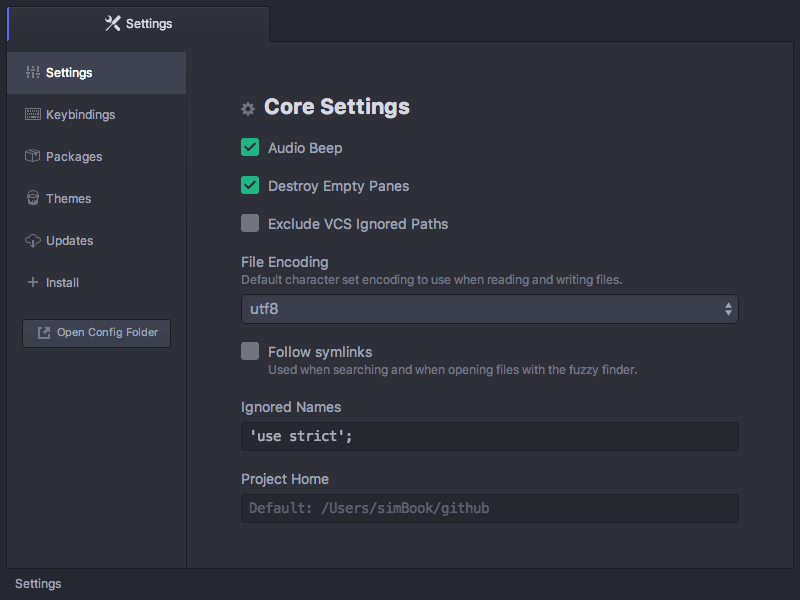
You can find a description of most common configuration options in the Basic customization section. For example, if you want Pulsar to hide the invisible symbols representing whitespace characters, disable the "Show Invisibles" option.
Some of these options are also available on a per-language basis. For instance, you might want Python files to use hard tabs, but most other files to use soft tabs. To check the per-language settings, open the settings page for the language package that contains support for that language. For instance:
- JavaScript settings are inside the language-javascript package.
- Python settings are inside the language-python package.
- Both C and C++ settings are inside the language-c pacakge.
You can reach these settings pages via the Packages pane in the settings view.
Other important settings aren’t present in the Core or Editor panes of the settings view because they’re provided by built-in packages. For instance, the vertical line you may see in the editor at around the 80-character mark is called the wrap guide, and it’s provided by the wrap-guide package. If you want to turn that line off, you can uncheck the “Enabled” option in the package settings, or else disable the package altogether.
And if you don’t like it when Pulsar strips trailing whitespace or ensures that there’s a single trailing newline in the file, you can configure that in the whitespace package’s settings.
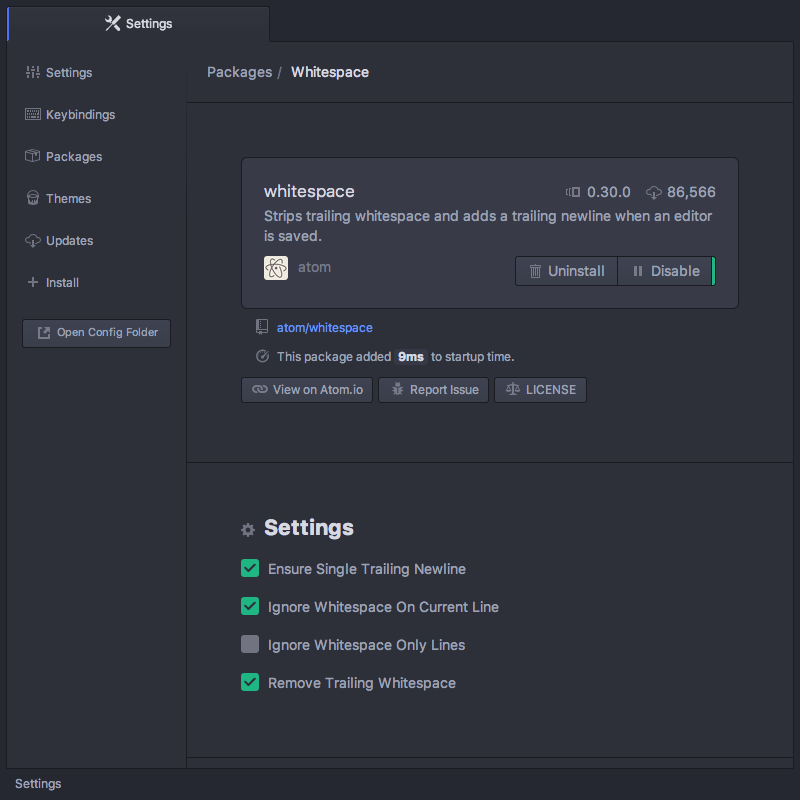
How are you supposed to know which package contains which settings? You aren’t. That’s why Pulsar’s settings-view comes with a built-in search tool that can help you find the setting you’re looking for.