
Editing and deleting text
So far we’ve looked at a number of ways to move around and select regions of a file, but we haven’t yet made any changes to files.
You don’t need a tutorial page to tell you that you can type on your keyboard in order to input text — but there are also a number of ways to delete and manipulate text that could come in handy.
Basic manipulation
There are a handful of keybindings for basic text manipulation that go beyond what your operating system offers. These range from moving around lines of text and duplicating lines to changing the case.
- Ctrl+J - Join the next line to the end of the current line
- Ctrl+Up/Down - Move the current line up or down
- Ctrl+Shift+D - Duplicate the current line
- Ctrl+K Ctrl+U - Upper-case the current word
- Ctrl+K Ctrl+L - Lower-case the current word
- Cmd+J - Join the next line to the end of the current line
- Cmd+Ctrl+Up/Down - Move the current line up or down
- Cmd+Shift+D - Duplicate the current line
- Cmd+K Cmd+U - Upper-case the current word
- Cmd+K Cmd+L - Lower-case the current word
- Ctrl+T - Transpose characters (swap the two characters on either side of the cursor)
- Ctrl+J - Join the next line to the end of the current line
- Ctrl+Up/Down - Move the current line up or down
- Ctrl+Shift+D - Duplicate the current line
- Ctrl+K Ctrl+U - Upper-case the current word
- Ctrl+K Ctrl+L - Lower-case the current word
Pulsar also has built-in functionality to re-flow a paragraph to hard-wrap at a given maximum line length. You can format the current selection to have lines no longer than 80 characters (or the value of editor.preferredLineLength) using Ctrl+Shift+QAlt+Cmd+Q. If nothing is selected, the current paragraph will be reflowed.
Deleting and cutting
You can also delete or cut text out of your buffer with some shortcuts. Be ruthless.
- Ctrl+Shift+K - Delete current line
- Ctrl+Backspace - Delete to beginning of word
- Ctrl+Delete - Delete to end of word
- Ctrl+Shift+K - Delete current line
- Alt+Backspace or Alt+H - Delete to beginning of word
- Alt+Delete or Alt+D - Delete to end of word
- Cmd+Delete - Delete to end of line
- Ctrl+K - Cut to end of line
- Cmd+Backspace - Delete to beginning of line
- Ctrl+Shift+K - Delete current line
- Ctrl+Backspace - Delete to beginning of word
- Ctrl+Delete - Delete to end of word
Multiple cursors and selections
One of the cool things that Pulsar can do out of the box is support multiple cursors. This can be incredibly helpful in manipulating long lists of text.
- Ctrl+Click - Add a new cursor at the clicked location
- Alt+Shift+Up/Down - Add another cursor above/below the current cursor
- Ctrl+D - Select the next word in the document that is the same as the currently selected word
- Alt+F3 - Select all words in the document that are the same as the currently selected word
- Cmd+Click - Add a new cursor at the clicked location
- Ctrl+Shift+Up/Down - Add another cursor above/below the current cursor
- Cmd+D - Select the next word in the document that is the same as the currently selected word
- Cmd+Ctrl+G - Select all words in the document that are the same as the currently selected word
- Cmd+Shift+L - Convert a multi-line selection into multiple cursors
- Ctrl+Click - Add a new cursor at the clicked location
- Alt+Ctrl+Up/Down - Add another cursor above/below the current cursor
- Ctrl+D - Select the next word in the document that is the same as the currently selected word
- Alt+F3 - Select all words in the document that are the same as the currently selected word
Using these commands, you can place cursors in multiple places in your document and effectively execute the same commands in multiple places at once.
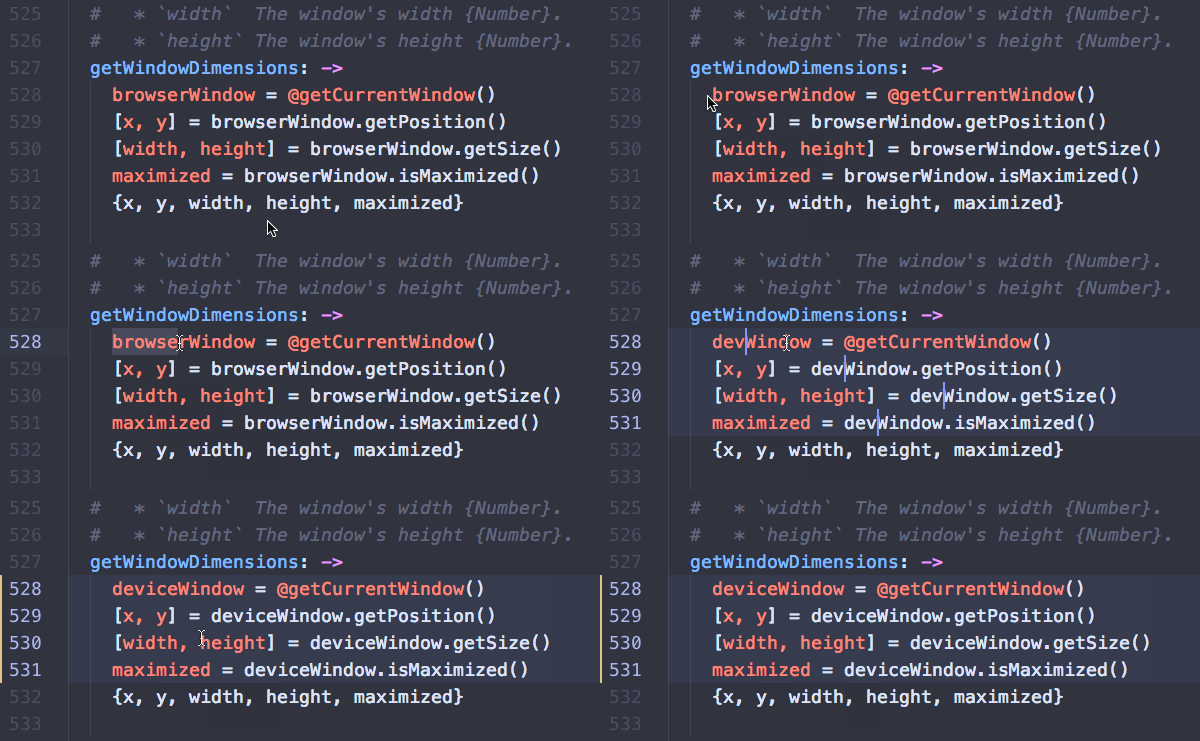
This can be incredibly helpful in doing many types of repetitive tasks — like renaming variables or wrapping quotes around several words at the same time. Most built-in commands for text input can operate on all active cursors — for example, changing case and moving or duplicating lines.
You can also use the mouse to select text with the CtrlCmd key pressed down to select multiple regions of your text simultaneously.
Return to a single cursor with Esc or by clicking anywhere in the file to position a cursor there as normal.
Whitespace
Pulsar comes with several commands to help you manage the whitespace in your document. One very useful pair of commands converts leading spaces into tabs and leading tabs into spaces. If you’re working with a document that has mixed whitespace, these commands are great for helping to normalize the file. There are no keybindings for the whitespace commands, so you will have to search your command palette for Convert Spaces to Tabs (or vice versa) to run one of these commands.
The whitespace commands are implemented in the whitespace package. Visit that package’s settings page if you want to disable it or change its configuration.
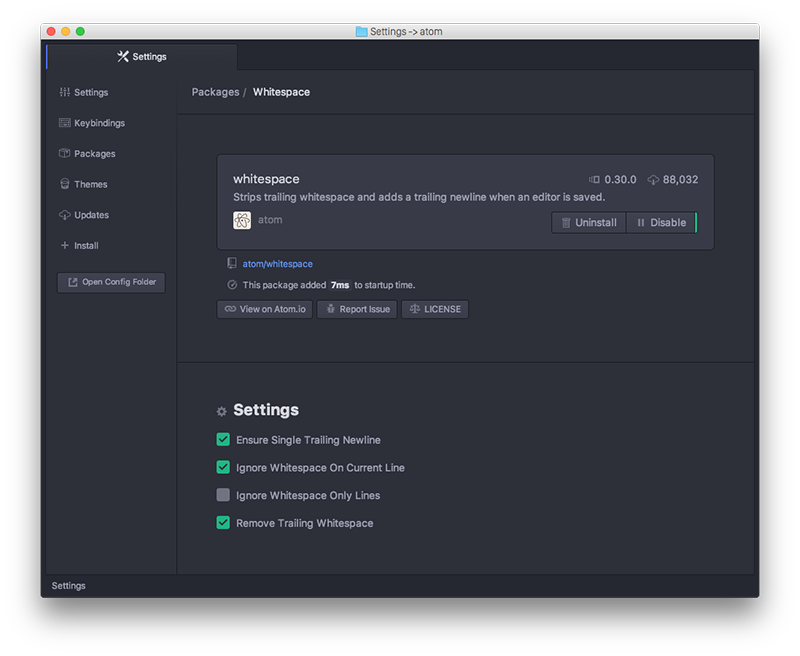
Pulsar will also by default ensure that your file has a trailing newline. You can also disable this option on that screen.
Brackets and other typing pairs
Pulsar ships with intelligent and easy-to-use management of “paired” characters.
It will by default highlight [], (), and {} style brackets when your cursor is over them. It will also highlight matching XML and HTML tags.
Pulsar will also automatically autocomplete [], (), {}, "", '', “”, ‘’, «», ‹›, and `` when you type the opening character in the pair, and will position the cursor in between the paired charaters. When you want to advance past the closing character in the pair, you may either press Right or type the closing character; it will move the cursor rather than insert an extra character.
If you type any of these opening characters while you have text selected, Pulsar will wrap the input in the paired characters.
There are a few other interesting bracket related commands that you can use.
- Ctrl+M - Jump to the bracket matching the one adjacent to the cursor. It jumps to the nearest enclosing bracket when there’s no adjacent bracket.
- Alt+Ctrl+, - Select all the text inside the current brackets
- Alt+Ctrl+. - Close the current XML/HTML tag
- Ctrl+M - Jump to the bracket matching the one adjacent to the cursor. It jumps to the nearest enclosing bracket when there’s no adjacent bracket.
- Cmd+Ctrl+M - Select all the text inside the current brackets
- Alt+Cmd+. - Close the current XML/HTML tag
- Ctrl+M - Jump to the bracket matching the one adjacent to the cursor. It jumps to the nearest enclosing bracket when there’s no adjacent bracket.
- Alt+Ctrl+, - Select all the text inside the current brackets
- Alt+Ctrl+. - Close the current XML/HTML tag
The brackets functionality is implemented in the bracket-matcher package. To change defaults related to bracket handling, or to disable it entirely, visit this package’s settings page in the settings view.
Encoding
Pulsar also ships with some basic file encoding support should you find yourself working with non-UTF-8 encoded files, or should you wish to create one.
The file encoding is shown in the status bar. To change the encoding of the file in the current editor, click on that encoding in the status bar, press Ctrl+Shift+UAlt+U, or run the Encoding Selector: Show command.
This brings up the a fuzzy-filtered list allowing you to choose a different file encoding.
When you open a file, Pulsar will try to auto-detect the encoding. If Pulsar can’t identify the encoding, the encoding will default to UTF-8, which is also the default encoding for new files.
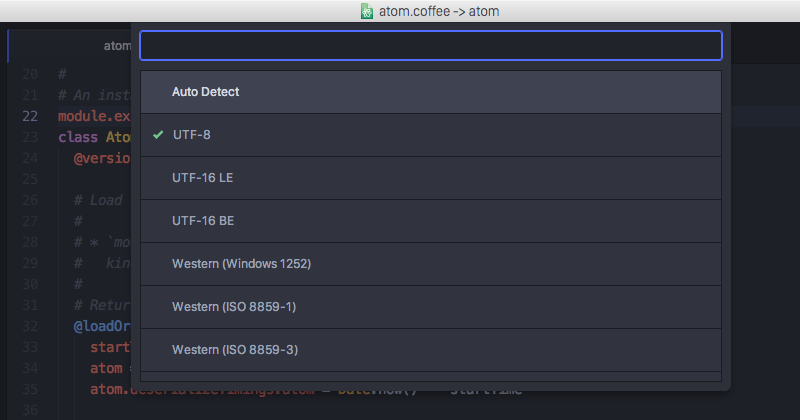
If you pull up the encoding menu and change the active encoding to something else, the file will be written out in that encoding. If there are no pending changes — that is, if you’ve made no unsaved modifications to the file — then the new encoding will be written to disk immediately. If you do have pending changes, the new encoding will be written to disk whenever you next save the file.
The encoding selector is implemented in the encoding-selector package.