
Terminal
What’s a development environment without a terminal? If you prefer to have your terminal close at hand instead of in another application, you can use the built-in terminal provided by Pulsar’s terminal package.
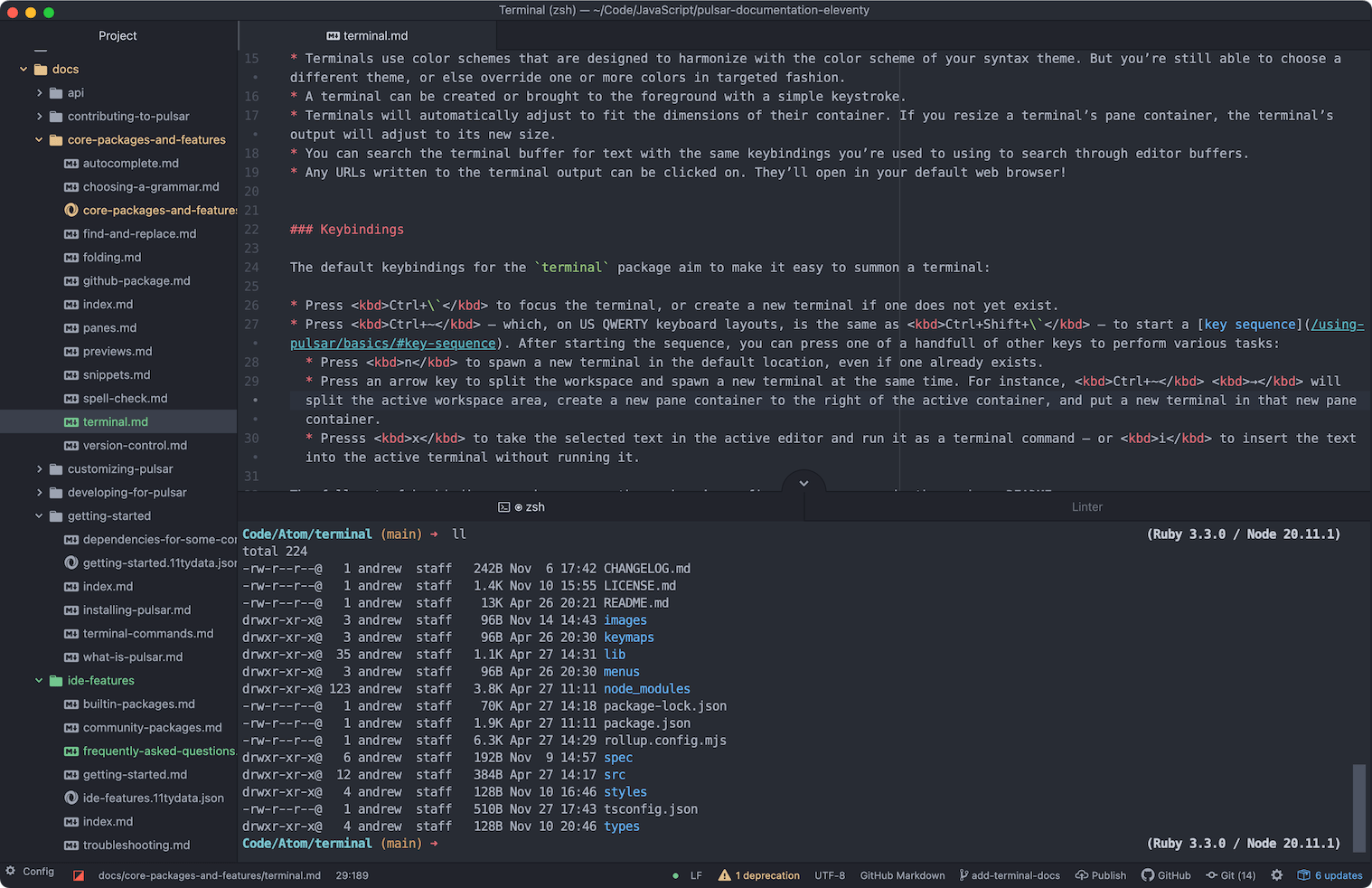
The built-in terminal has all the features you’d expect:
- It can live anywhere in your workspace: one of the center pane containers, or any of the docks to the bottom, left, or right.
- You can open any number of different terminals for different purposes.
- Terminals have sensible defaults for your platform. If you’re on Linux or macOS, by default the terminal will spawn your system shell — be it
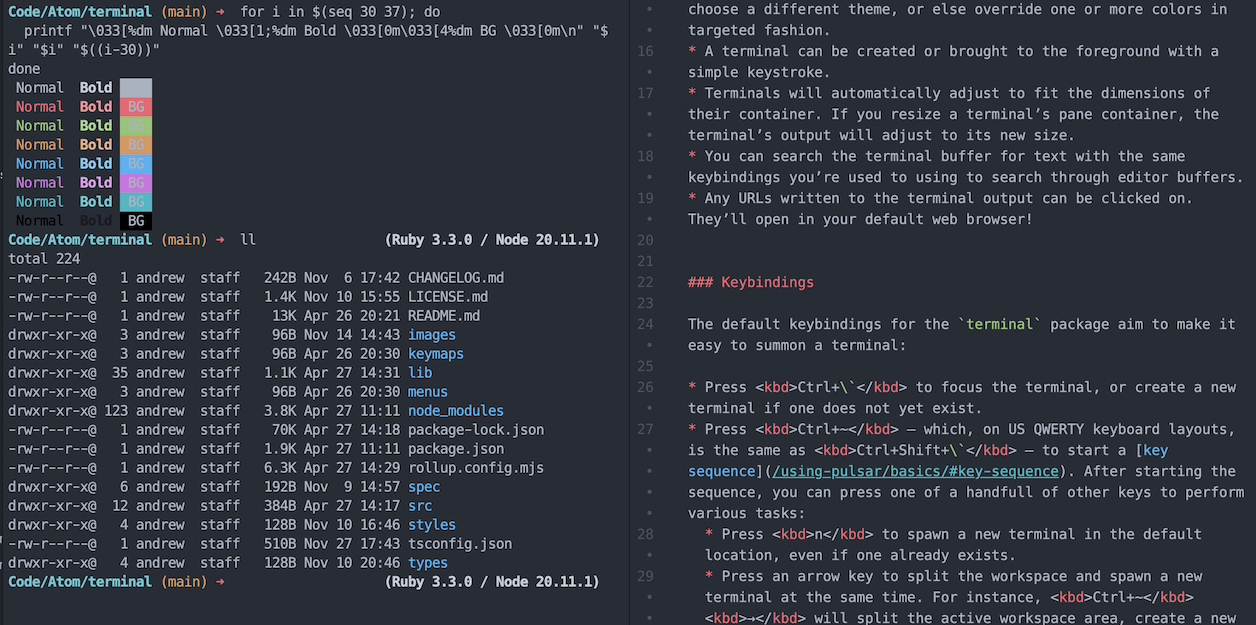
bash,zsh,fish, or something more exotic. If you’re on Windows, the terminal will default to PowerShell if it’s available, and battle-testedcmd.exeif it isn’t. And if you prefer something other than the default, you can explicitly specify your desired shell in the package settings. - Terminals are designed to reuse the existing color palette of your syntax theme. But you’re still able to choose a different theme, or else override one or more colors in targeted fashion.
- A terminal can be created or brought to the foreground with a simple keystroke.
- Terminals will automatically adjust to fit the dimensions of their container. If you resize a terminal’s pane container, the terminal’s output will reflow to adjust to the new size.
- You can search the terminal buffer for text with the same keybindings you’re used to using to search through editor buffers.
- Any URLs written to the terminal output can be clicked on. They’ll open in your default web browser!
Opening a terminal
You may open a new terminal in several ways:
- Using the main Terminal: Open command (bound to Ctrl+` by default). This sets the working directory to your project root, if it exists, or otherwise your default working directory (typically your user’s home folderuser profile folder).
- Right-clicking on a file or directory in the tree view and choosing Terminal → Open New, or one of the options in the Open New In… sub-menu. This will treat the directory you clicked on (or the parent directory of the file you clicked on) as the working directory and open a new terminal either in your workspace center or in the location you chose.
- Right-clicking within an editor and choosing Terminal → Open New, or one of the options in the Open New In… sub-menu. This will treat the parent directory of the file you’re editing as the working directory and open a new terminal either in your workspace center or in the location you chose.
Keybindings
The default keybindings for the terminal package aim to make it easy to summon a terminal:
- Press Ctrl+` to focus the terminal, or create a new terminal if one does not yet exist.
- Press Ctrl+~ — which, on US QWERTY keyboard layouts, is the same as Ctrl+Shift+` — to start a key sequence. After starting the sequence, you can press one of a handful of other keys to perform various tasks:
- Press n to spawn a new terminal in the default location, even if one already exists.
- Press an arrow key to split the workspace and spawn a new terminal at the same time. For instance, Ctrl+~ → will split the active workspace area, create a new pane container to the right of the active container, and put a new terminal in that new pane container.
- Presss x to take the selected text in the active editor and run it as a terminal command — or i to insert the text into the active terminal without running it.
The full set of keybindings can be seen on the package’s configuration page or in the package README.
Keyboard handling
Terminal emulators like to handle their own keyboard input. This can lead to surprising behavior, since Pulsar generally expects to be able to handle keyboard events. While the terminal is focused, you may press a certain key combination intending to invoke a Pulsar command… yet discover you performed an unintended action within the terminal instead!
If you think this is happening with a certain keystroke, the easiest way to confirm it is by using the keybinding resolver. Normally, every keystroke — even a single letter typed in an editor — is seen and handled by the keybinding resolver. So when the terminal has focus, press your keystroke to see how it’s interpreted; if the keybinding resolver doesn’t see the keystroke at all, that means it’s being handled by the terminal.
The most reliable way to avoid this is to unfocus the terminal (by pressing Ctrl+` when the terminal is in focus) before invoking your keystroke. But this is annoying! So for certain commands, we bypass this requirement. Here are the commands whose bindings Pulsar will handle instead of letting the terminal handle the binding:
- Any binding defined by the terminal package itself.
- Any binding that begins with
pane:(since pane management keybindings are designed to work anywhere in the workspace).
You can add your own commands to this list via terminal’s package settings; find Behavior → Prioritized Commands for Keyboard Handling and add a specific command or an entire command prefix to the list.
Note that this is needed only in cases where keybindings conflict! If a given binding has no meaning in your terminal session, it will automatically be handled by Pulsar. It’s a good idea to be selective with what you add to this list.
URL handling
If a URL is present in your terminal’s buffer output, you can click on that URL to open it in your default web browser.
By default, it requires more than just clicking on the URL: you must hold the CmdCtrl key while clicking. This is meant to prevent accidental clicks. If you prefer, you can disable this behavior in terminal’s package settings.