Version control
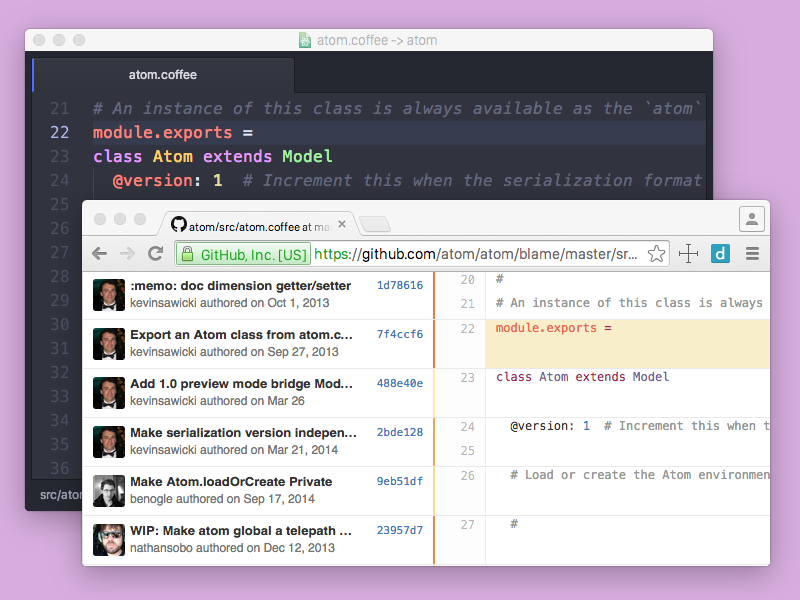
Pulsar comes with strong integrations with Git and GitHub.
Checkout HEAD revision
The Alt+Ctrl+ZAlt+Cmd+Z keybinding (the Editor: Checkout Head Revision command) checks out the HEAD revision of the file in the editor.
This is a quick way to discard any saved and staged changes you’ve made and restore the file to the version in the HEAD commit. This is essentially the same as running git checkout HEAD -- <path> and git reset HEAD -- <path> from the command line for that path.
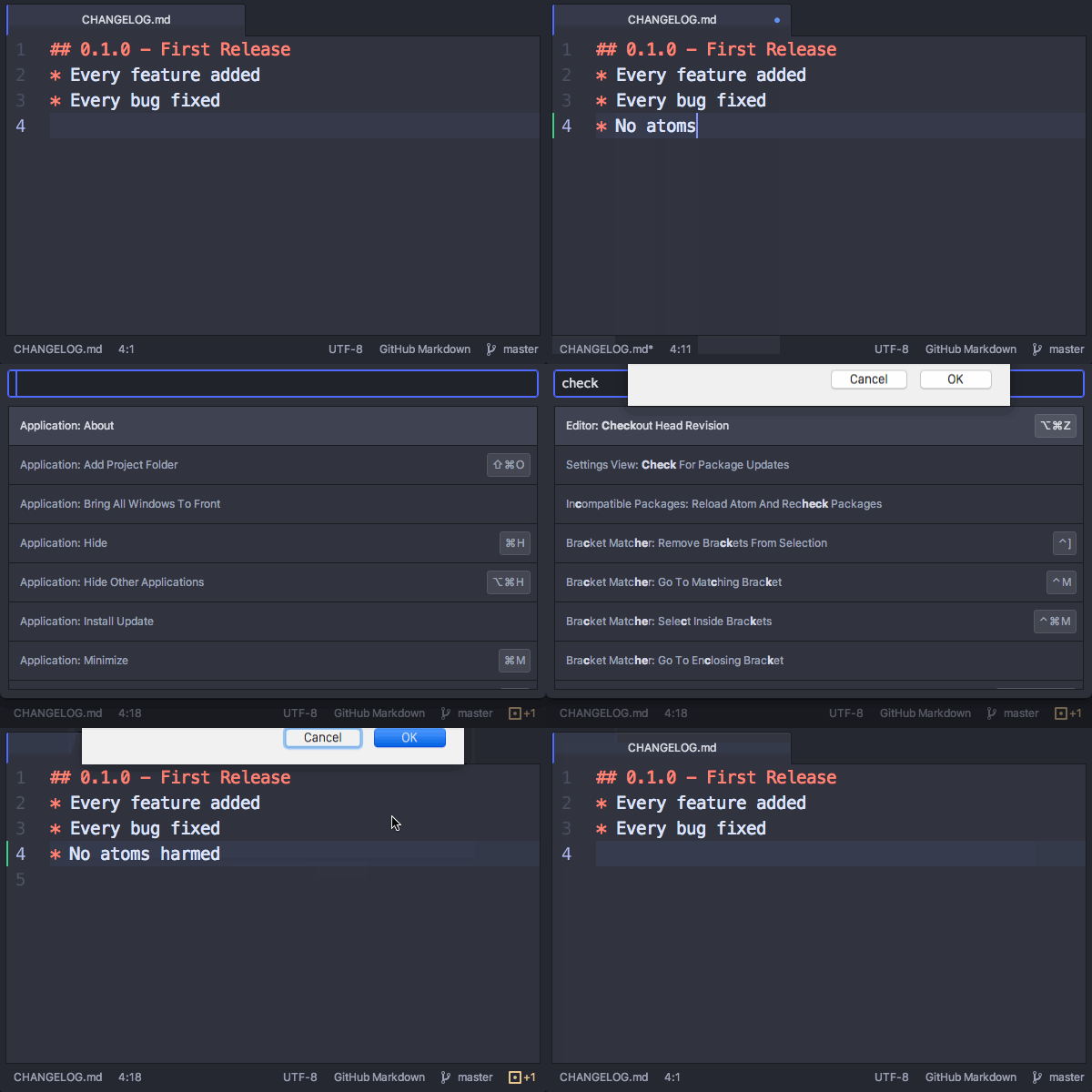
You might think that this is a pretty risky thing to commit to a keybinding. Luckily, this command goes onto the undo stack! That means you can use Ctrl+ZCmd+Z afterwards to restore the previous contents.
Git status list
We discussed the fuzzy-finder package earlier — the package that gives you several methods of opening files in your project. This package also integrates with version control. It provides Ctrl+Shift+BCmd+Shift+B — the Fuzzy Finder: Toggle Git Status Finder command — which displays a list of all the untracked and modified files in the project. These will be the same files that you would see on the command line if you ran git status.
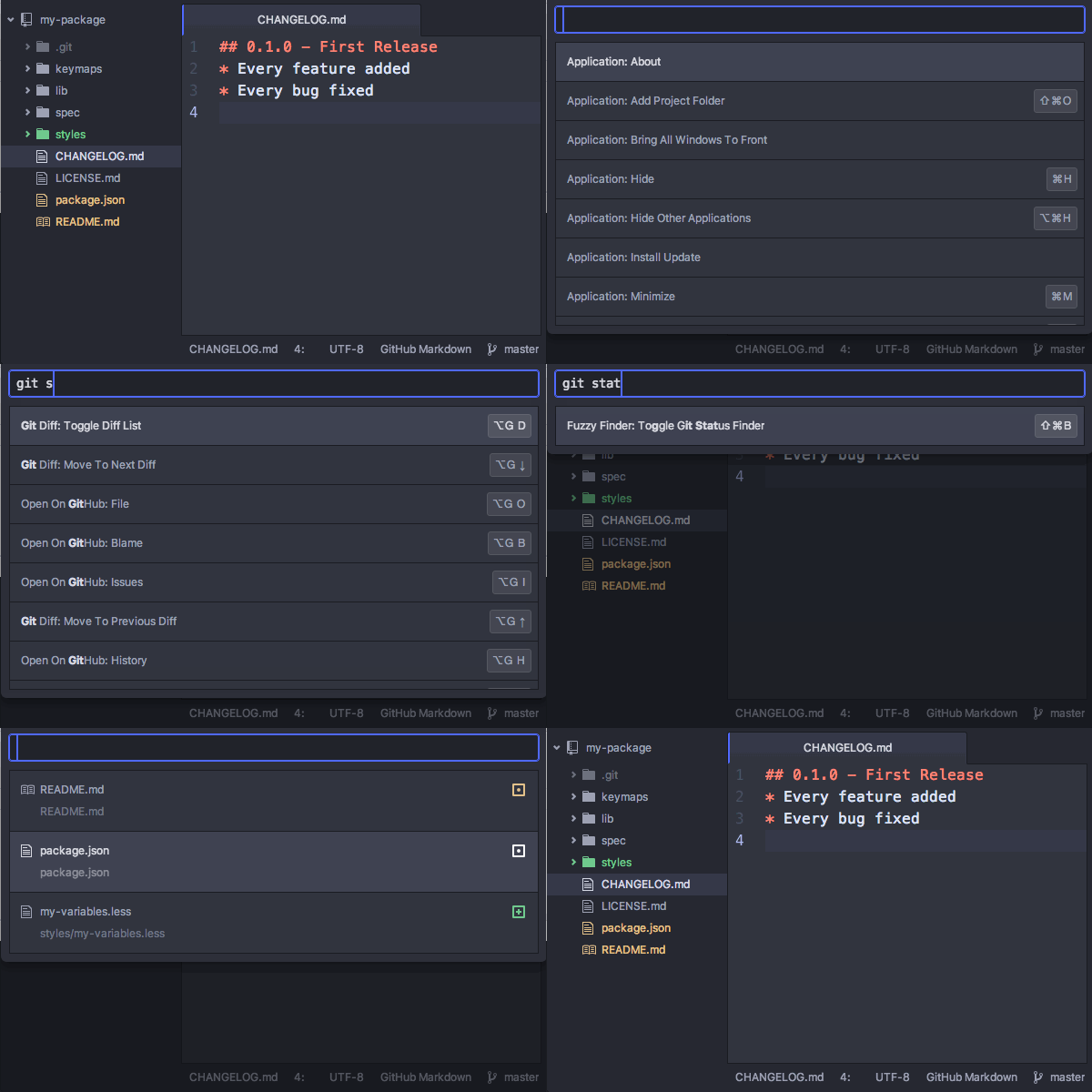
Furthermore, all fuzzy-finder views will show the VCS status of certain files in your project. If a file is untracked or modified, you’ll see an icon next to the file’s name in the palette.
Commit editor
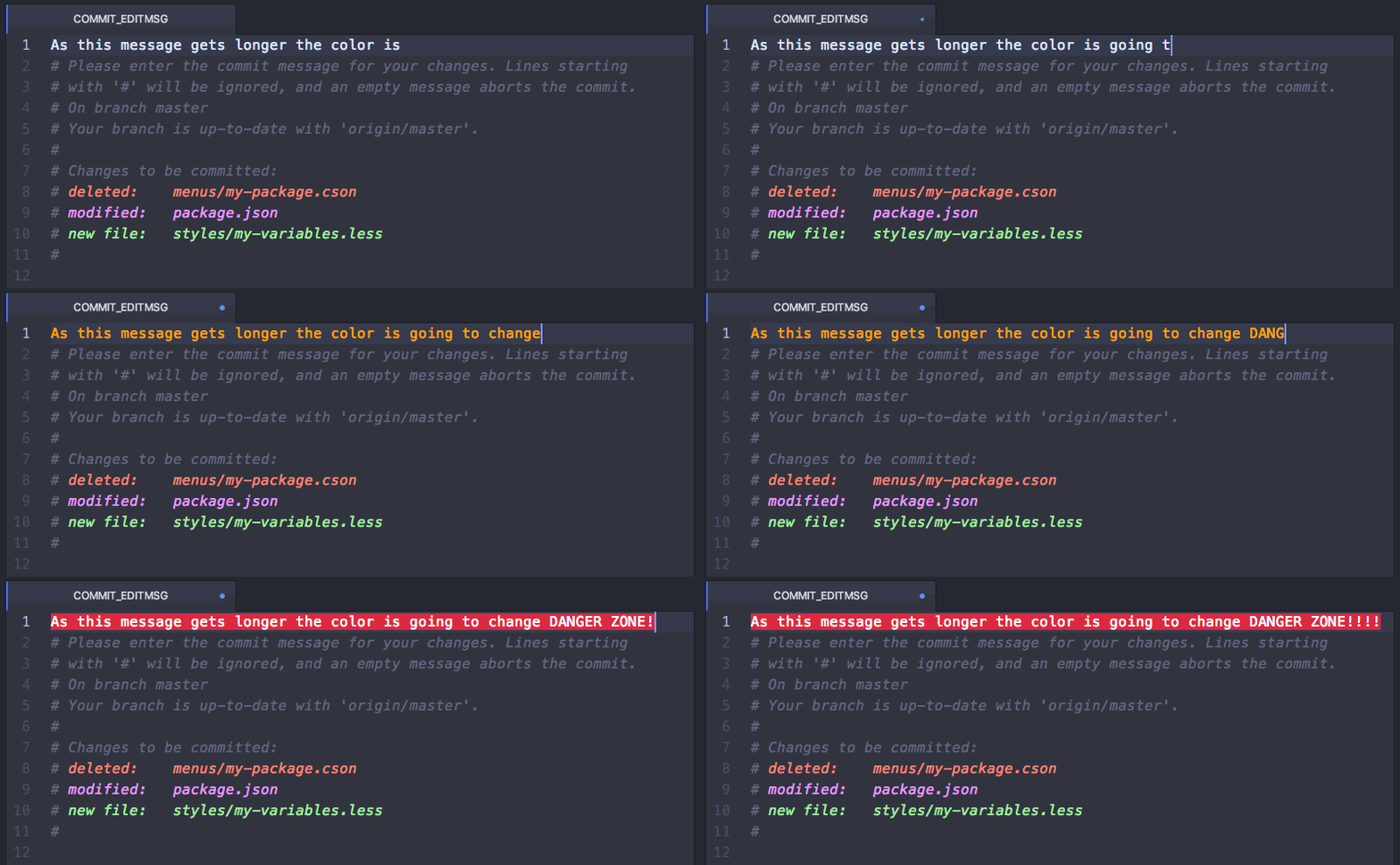
Pulsar can be used as your Git commit editor. The core language-git package acts as a syntax highlighter for all sorts of Git commit messages.
You can configure Pulsar to be your Git commit editor with the following command:
$ git config --global core.editor "pulsar --wait"The language-git package will help remind you to be brief by colorizing the first lines of commit messages when they’re longer than 50 or 65 characters.
Status bar icons
The status-bar package that ships with Pulsar includes several Git decorations that display on the right side of the status bar:
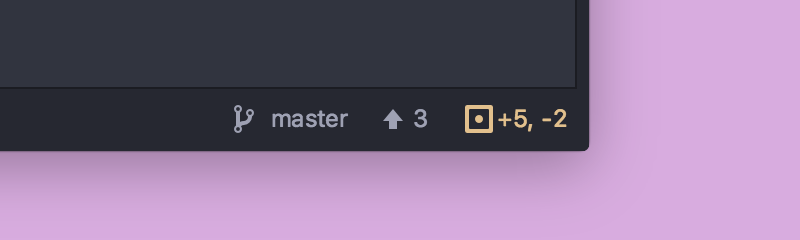
The currently checked out branch name is shown with the number of commits the branch is ahead of or behind its upstream branch. An icon is added if the file is untracked, modified, or ignored. The number of lines added and removed since the file was last committed will be displayed as well.
Line diffs
The included git-diff package colorizes the gutter next to lines that have been added, edited, or removed.
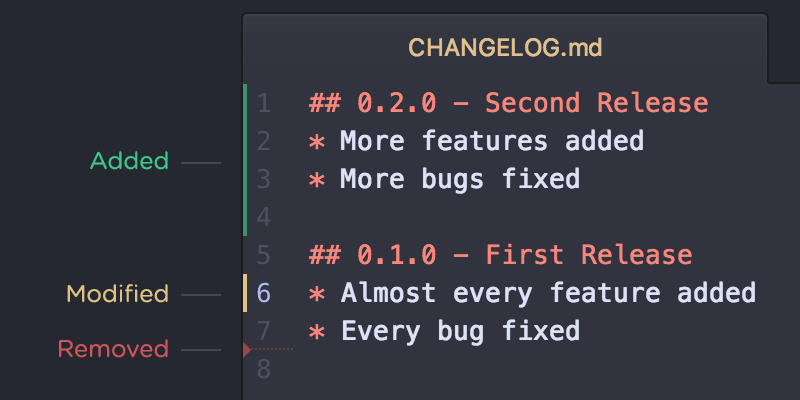
This package also adds Alt+G Down and Alt+G Up keybindings that allow you to move the cursor to the next or previous diff in the current editor. These bindings map to the Git Diff: Move To Next/Previous Diff commands.
Open on GitHub
If the project you’re working on is on GitHub, there are also some very useful integrations you can use. Most of the commands will take the current file you’re viewing and open a view of that file on GitHub — for instance, the blame or commit history of that file.
- Alt+G O - Open file on GitHub
- Alt+G B - Open Blame view of file on GitHub
- Alt+G H - Open History view of file on GitHub
- Alt+G C - Copy the URL of the current file on GitHub to the clipboard
- Alt+G R - Branch compare on GitHub
The branch comparison shows you the commits that are on the branch you’re currently working on locally that are not on the mainline branch.