
Customizing keybindings
Pulsar keymaps work similarly to stylesheets. Just as stylesheets use selectors to apply styles to elements, Pulsar keymaps use selectors to associate key combinations with events in specific contexts. Here’s a small example, excerpted from Pulsar’s built-in keymap:
'atom-text-editor':
  'enter': 'editor:newline'

'atom-text-editor[mini] input':
  'enter': 'core:confirm'
This keymap defines the meaning of Enter in two different contexts. In a normal editor, pressing Enter triggers the editor:newline command, which causes the editor to insert a newline. But if the same keystroke occurs inside a “mini-editor” — the component that handles nearly all single-line text fields in Pusar — it instead triggers the core:confirm command based on the binding in the more-specific selector.
When Pulsar starts, it loads your personal keymap from the keymap.cson file in your ~/.pulsar%USERPROFILE%\.pulsar folder. It will always be loaded last, giving you the chance to override bindings that are defined by Pulsar’s core keymaps or third-party packages. You can open this file in an editor from the Edit > KeymapPulsar > Keymap…File > Keymap menu item.
You can see all the keybindings that are currently configured in your installation of Pulsar in the Keybindings tab in the Settings View.
If you run into problems with keybindings, the keybinding resolver is a huge help. It can be opened with the Ctrl+. Cmd+. key combination. It will show you what keys Pulsar saw you press and what command Pulsar executed because of that combination.
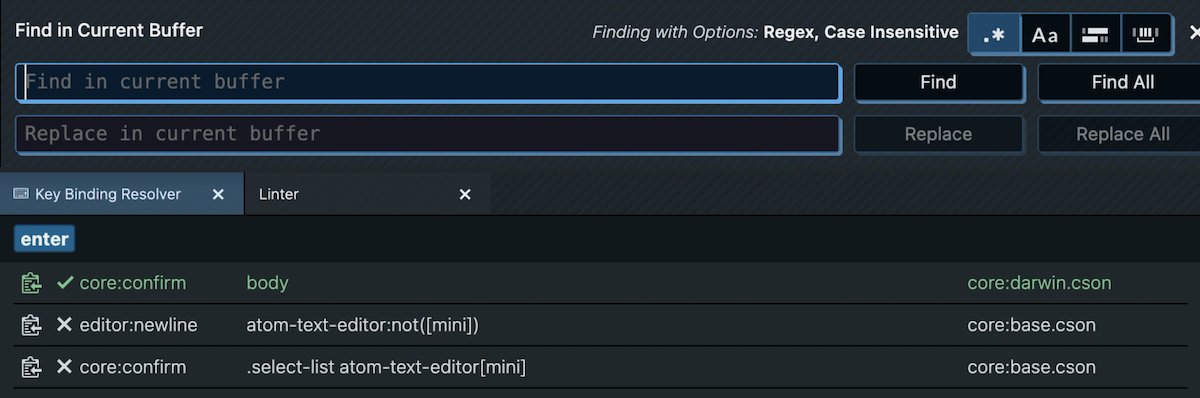
The keybinding resolver is provided by the keybinding-resolver package.