
Style tweaks
We learned earlier that Pulsar is built on web technologies. Everything that’s rendered within a Pulsar window is a web page and can be styled with CSS. Because of this, you can customize anything you see on screen with your own user stylesheet.
If you want to apply quick-and-dirty personal styling changes without creating an entire theme that you intend to publish, you can add styles to the styles.less file in your ~/.pulsar%USERPROFILE%\.pulsar directory. You can open this file in an editor from the Edit > StylesheetPulsar > Stylesheet…File > Stylesheet menu.
For example, to change the colors of the status bar, you could add the following rule to your styles.less file:
.status-bar {
  color: white;
  background-color: black;
}Using developer tools to discover class names
The easiest way to see what classes are available to style is to inspect the DOM manually via the developer tools. For more information about the developer tools, refer to its documentation, but we’ll do a crash course in element inspection.
You can open the developer tools by pressing Ctrl+Shift+IAlt+Cmd+I.
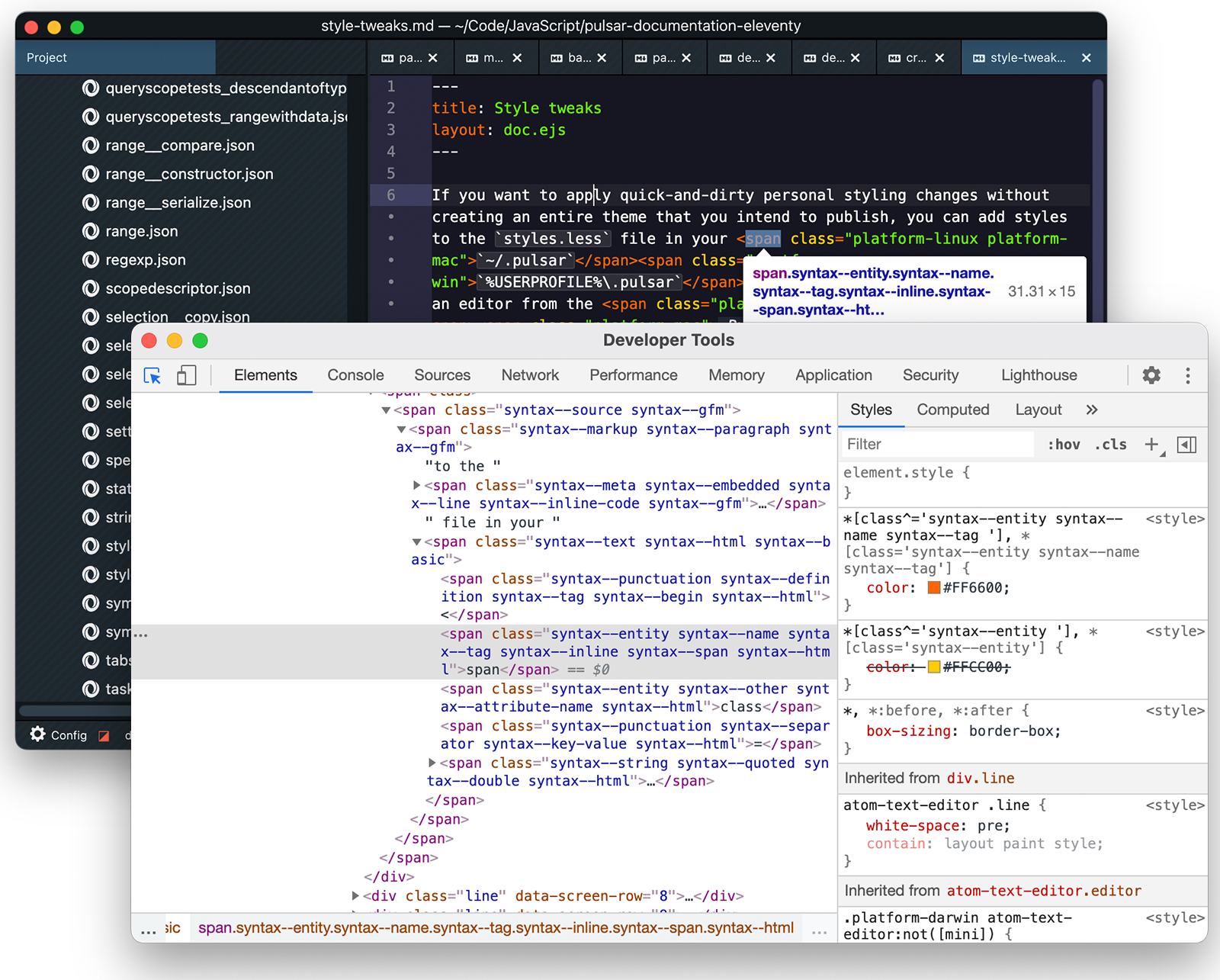
With the developer tools, you can inspect all the elements in Pulsar. If you want to update the style of something, you can figure out what classes it has and add a rule to your stylesheet to modify it.
Advanced customization with variables
Syntax and UI themes in Pulsar define variables that can be used by other stylesheets in Pulsar — including your user stylesheet.
Suppose you want to customize the color of a variable in Python. You can use the developer tools to inspect a Python variable you see on screen to discover the right selector to use for customizing its appearance; then you can use a variable in your user stylesheet as follows:
@import 'syntax-variables';

.syntax--source.syntax--python {
  .syntax--variable {
    // You could make it plain…
    color: @syntax-text-color !important;
    // …or color it like a string…
    color: @syntax-color-string !important;
    // …or like a keyword…
    color: @syntax-color-keyword !important;
    // …or something else.
    // (`!important` may or may not be necessary here, depending on how your
    // syntax theme defines its rules.)
  }
}
If we hard-coded a color value here, we’d probably want to change the value if we switched syntax themes in the future. Instead, we can use one of the variables that syntax themes must define; that way the rule will work no matter which syntax theme is active.
Here’s the full list of syntax variables you can rely on being present in most syntax themes.
There is a similar set of variables you can use when customizing the UI:
@import 'ui-variables';

// When a file has unsaved changes, make the tab text yellow.
li.tab.modified {
  color: @text-color-warning;
}
Here’s the full set of UI variables you can rely on.