
Package: Word count
Let’s get started by writing a very simple package that will tell you how many words are in the current buffer and display it in a small modal window.
The simplest way to start a package is to use the built-in package generator that ships with Pulsar. As you might expect by now, this generator is itself a separate package implemented in package-generator.
You can run the generator by invoking the command palette and searching for "Generate Package". A dialog will appear asking you to name your new project. Name it your-name-word-count. Pulsar will then create that directory and fill it out with a skeleton project and link it into your ~/.pulsar/packages directory so it’s loaded when you launch your editor next time.
Your new project will also automatically be opened for editing. The boilerplate for the new package contains one command called Your Name Word Count: Toggle; if you were to invoke this command through the menu or command palette, you’d see a dialog that says "The YourNameWordCount package is Alive! It’s Alive!"
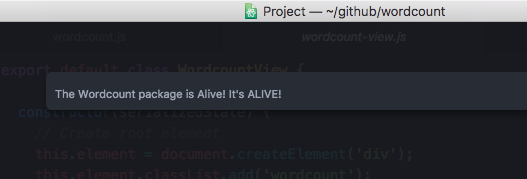
You can dismiss the dialog by executing the command again.
Understanding the generated code
Let’s take a look at the code in our lib directory and see what is happening.
There are two files in our lib directory. One is the main file (lib/your-name-word-count.js), which is pointed to in the package.json file as the main file to execute for this package. This file handles the logic of the whole package.
The second file is a view class, lib/your-name-word-count-view.js, which handles the UI elements of the package. Let’s look at this file first, since it’s pretty simple.
export default class YourNameWordCountView {
	constructor(serializedState) {
		// Create root element
		this.element = document.createElement("div");
		this.element.classList.add("your-name-word-count");

		// Create message element
		const message = document.createElement("div");
		message.textContent = "The YourNameWordCount package is Alive! It's ALIVE!";
		message.classList.add("message");
		this.element.appendChild(message);
	}

	// Returns an object that can be retrieved when package is activated
	serialize() {}

	// Tear down any state and detach
	destroy() {
		this.element.remove();
	}

	getElement() {
		return this.element;
	}
}
Nothing complicated happens here. When the YourNameWordCountView class is instantiated, it creates a simple div element and adds the your-name-word-count class to it (so we can find or style it later) and then adds the "Your Name Word Count package is Alive!" text to it. It exposes that div via a getElement method. The serialize and destroy methods don’t do anything yet; we won’t have to worry about that until another example.
Notice that we’re simply using the basic browser DOM methods: createElement() and appendChild().
The second file we have is the main entry point to the package, as indicated in the main field of the package.json file. Let’s take a look at that one:
import YourNameWordCountView from "./your-name-word-count-view";
import { CompositeDisposable } from "atom";

export default {
	yourNameWordCountView: null,
	modalPanel: null,
	subscriptions: null,

	activate(state) {
		this.yourNameWordCountView = new YourNameWordCountView(
			state.yourNameWordCountViewState
		);
		this.modalPanel = atom.workspace.addModalPanel({
			item: this.yourNameWordCountView.getElement(),
			visible: false,
		});

		// Events subscribed to in Pulsar's system can be easily cleaned up with a CompositeDisposable
		this.subscriptions = new CompositeDisposable();

		// Register command that toggles this view
		this.subscriptions.add(
			atom.commands.add("atom-workspace", {
				"your-name-word-count:toggle": () => this.toggle(),
			})
		);
	},

	deactivate() {
		this.modalPanel.destroy();
		this.subscriptions.dispose();
		this.yourNameWordCountView.destroy();
	},

	serialize() {
		return {
			yourNameWordCountViewState: this.yourNameWordCountView.serialize(),
		};
	},

	toggle() {
		console.log("YourNameWordCount was toggled!");
		return this.modalPanel.isVisible()
			? this.modalPanel.hide()
			: this.modalPanel.show();
	},
};
There is a bit more going on here. We’re defining four methods here, but the only required one is activate — the method that will be called when your package is activated.
The deactivate and serialize methods are expected by Pulsar but optional: if present, they’ll be called when the package is deactivated and when the window is closed, respectively.
The toggle method isn’t a method that Pulsar itself knows or cares about; for it to be called, we’ll have to invoke it ourselves. We could hook it up to a menu option, or define a command that calls that method, or wire up an event handler to call that method when some sort of editor event happens.
The activate method
The activate method may seem straightforward, but there’s an important caveat to keep in mind: activate isn’t always called automatically when Pulsar starts! A package can use one of several techniques to defer its own activation until later.
One is to define one or more activationCommands in the package.json. If any such commands are present, then your package won’t be activated until one of these commands is invoked by the user — whether by a hotkey, a menu option, or explicit invocation via the command palette. If the command is never invoked, the package is never activated.
This is a good idea! It means that Pulsar will open project windows more quickly because it can skip calling activate on some packages until later. It’s not always possible to defer your package’s activation, but please consider if it makes sense for yours.
Our activate method does two things. First it creates an instance of YourNameWordCountView and adds the view’s element to a hidden modal panel in the Pulsar workspace.
this.yourNameWordCountView = new YourNameWordCountView(
	state.yourNameWordCountViewState
);
this.modalPanel = atom.workspace.addModalPanel({
	item: this.yourNameWordCountView.getElement(),
	visible: false,
});
We’ll ignore the state stuff for now, since it’s not important for this simple package. The rest should be fairly straightforward.
Next, our activate method creates an instance of the CompositeDisposable class. It does this because some methods that are typically called during package activation — adding commands, subscribing to events, and so on — will create side effects that should be cleaned up if this package is ever deactivated. A CompositeDisposable helps us keep track of all of those clean-up tasks.
// Events subscribed to in Pulsar's system can be easily cleaned up with a
// CompositeDisposable.
this.subscriptions = new CompositeDisposable();

// Register a command that toggles this view.
this.subscriptions.add(
	atom.commands.add("atom-workspace", {
		"your-name-word-count:toggle": () => this.toggle(),
	})
);
Next we have the toggle method. This method simply toggles the visibility of the modal panel that we created in the activate method.
toggle() {
  console.log('YourNameWordCount was toggled!');
  return (
    this.modalPanel.isVisible() ?
    this.modalPanel.hide() :
    this.modalPanel.show()
  );
}
Here we’re looking to see if the modal element is visible, then hiding or showing it depending on what we observe.
The flow
So let’s review the flow in this package.
- Pulsar starts up
- Pulsar starts loading packages
- Pulsar reads your
package.json - Pulsar loads keymaps, menus, styles and the main module
- Pulsar finishes loading packages
- At some point, the user executes your package command
your-name-word-count:toggle - Pulsar executes the
activatemethod in your main module which sets up the UI by creating the hidden modal view - Pulsar executes the package command
your-name-word-count:togglewhich reveals the hidden modal view - At some point, the user executes the
your-name-word-count:togglecommand again - Pulsar executes the command which hides the modal view
- Eventually, Pulsar is shut down; any serializations that your package has defined will be triggered
Counting the words
So now that we understand what is happening, let’s modify the code so that our little modal box shows us the current word count instead of static text.
We’ll do this in a very simple way. When the dialog is toggled, we’ll count the words right before displaying the modal. So let’s do this in the toggle command. If we add some code to count the words and ask the view to update itself, we’ll have something like this:
toggle() {
  if (this.modalPanel.isVisible()) {
    this.modalPanel.hide();
  } else {
    const editor = atom.workspace.getActiveTextEditor();
    const words = editor.getText().split(/\s+/).length;
    this.yourNameWordCountView.setCount(words);
    this.modalPanel.show();
  }
}
Let’s look at the three lines we’ve added. First we get an instance of the current TextEditor object by calling atom.workspace.getActiveTextEditor().
Next we get the number of words by calling getText() on our new editor object, splitting that text on whitespace with a regular expression, and getting the length of that array.
Finally, we’ll tell our view to update the word count it displays by calling the setCount() method on our view and then showing the modal again. Since that method doesn’t yet exist, let’s create it now.
We can add this code near the end of our your-name-word-count-view.js file:
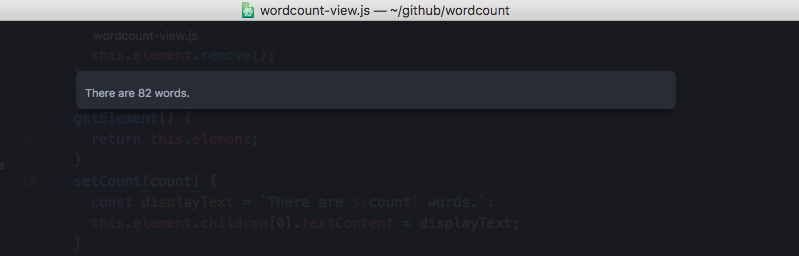
setCount(count) {
  const displayText = `There are ${count} words.`;
  this.element.children[0].textContent = displayText;
}
Pretty simple! We take the count number that was passed in and place it into a string that we then stick into the element that our view is controlling.
Summary
We’ve now generated, customized and tested our first package for Pulsar. Congratulations!