
IDE features provided by builtin packages
So far we’ve told you how to install an IDE package for a given language — the “brain” that knows how to deliver lots of IDE features. But brains can’t do anything by themselves. What does the brain talk to? How do you use the features themselves?
For various reasons, some of these IDE features are provided by built-in packages, and others require additional community packages to enable. First, let’s talk about the built-in packages, and the features you get for free without further installation.
Autocompletion
We’ve learned that autocompletion is provided by the autocomplete-plus package. IDE packages use the autocomplete.provider service to supply contextual autocompletion suggestions to the user.
Even where other autocompletion providers exist — like the built-in autocomplete-html and autocomplete-css — the autocompletion you get from an IDE package is likely to be more contextually aware and more useful.
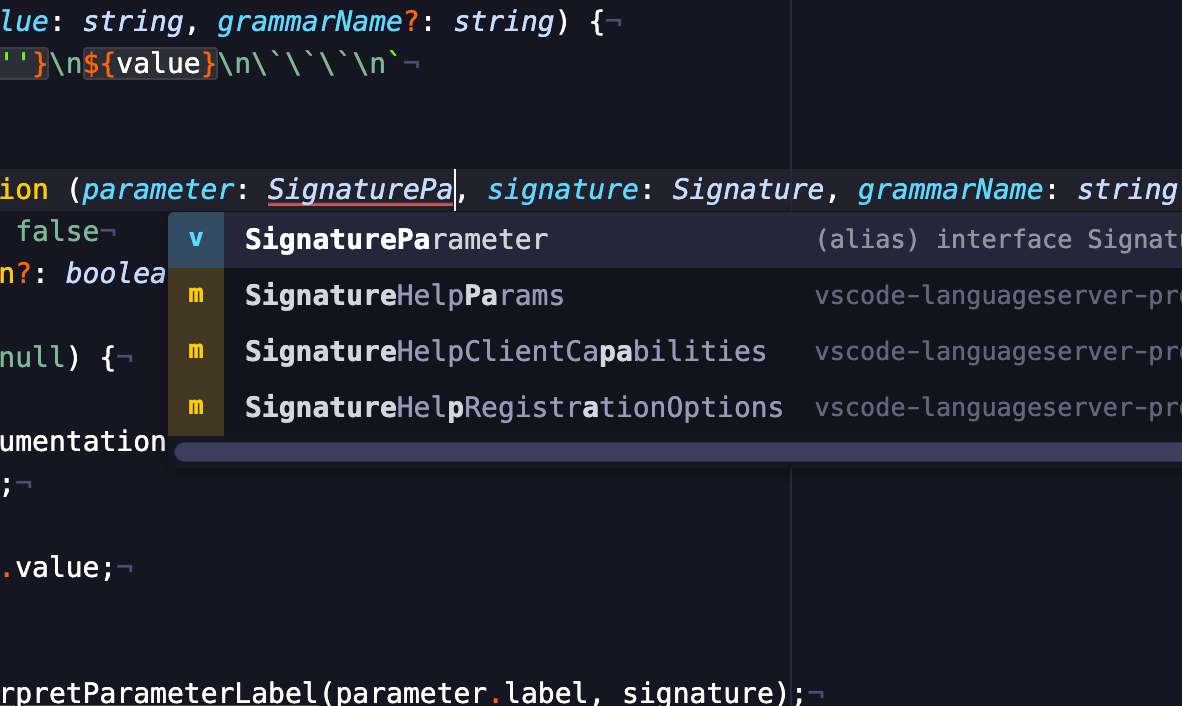
In this example, pulsar-ide-typescript is able to offer us a contextual completion for this parameter type.
Symbol resolution
We briefly mentioned how you can navigate through files by symbol. Those symbols could be a number of things depending on the kind of file: method names, CSS selectors, or Markdown heading names, to list a few examples.
This functionality is supplied by the built-in symbols-view package. Even without an IDE package, Pulsar allows you to navigate by symbols in most languages for the current file. (Since the file is already open, this isn’t hard!) But symbols-view also has the ability to jump to a symbol in a different file, but not automatically; it needs something to tell it what those symbols are. A language server can do that very thing!
An IDE package is especially useful for symbol resolution and lets you search for symbols on a project-wide basis. For instance, the Symbols View: Toggle Project Symbols command (Cmd+Shift+RCtrl+Shift+R by default) will open a palette into which you can type the name of a symbol that may exist anywhere in your project.
Symbols View: Toggle Project Symbols lets you search for symbols across the entire project.
Even more powerful is the ability to jump to where a symbol is defined. Place your cursor inside the name of a function, then invoke the Symbols View: Go To Declaration command (Cmd+Alt+DownCtrl+Alt+Shift+Down by default) to jump to the declaration of that function!
But this isn’t a one-way trip: when you’re done consulting the function definition, you can invoke Symbols View: Return From Declaration (Cmd+Alt+UpCtrl+Alt+Shift+Up by default) to return to your previous location.
Symbols View: Go To Declaration lets you jump to the place where a symbol is defined, no matter where it is in your project. Symbols View: Return From Declaration will return you to your original position.
The list of locations you jump from functions like a web browser’s history stack. For instance, you can jump three definitions deep, then invoke Symbols View: Return From Declaration three times in a row to go back to where you started.