
IDE features provided by community packages
We just showed you a couple of features that you get for free without having to install any extra packages. Here are some others that are provided by community packages and are just a one-click install away.
Linting
Linting, otherwise known as code diagnostics, describes the process of flagging and annotating possible errors or mistakes in your code.
A linting interface is not built into Pulsar. The canonical packages for linting are linter and linter-ui-default; linter was the second-most-popular community package for Atom, with millions of installations, and still works quite well in Pulsar.
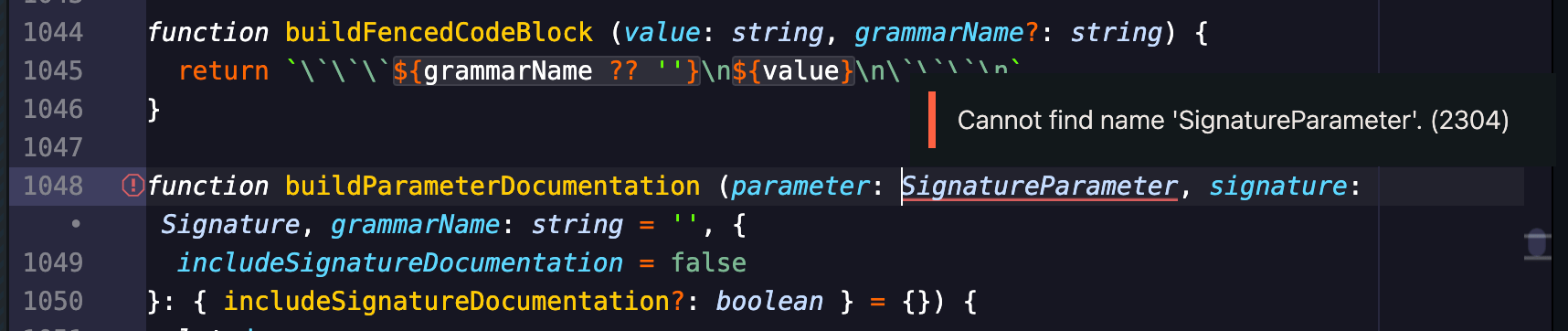
The linter package shows diagnostic errors and warnings and may offer fixes.
As is common with “UI” packages, the linter package does not do any code analysis on its own; it simply defines a system by which other packages can report code diagnostics. There are many, many packages out there that integrate into linter — not just IDE packages but also specialized code-linting tools. For this reason, you might already have linter installed!
Consider perusing the lists of packages that use the linter service or the linter-indie service; this is another way to discover IDE packages.
Code actions
Language servers can do sophisticated analysis of your code and offer arbitrary options for refactors or fixes. Indeed, code actions and linting often go hand-in-hand; it’s common for a language server to both flag a possible error and make suggestions on how to fix it.
If you’ve used Visual Studio Code, you may be familiar with code actions already. In Pulsar, the equivalent feature is provided by the intentions package; a user can invoke the Intentions: Show command to display suggestions for the code under the cursor.
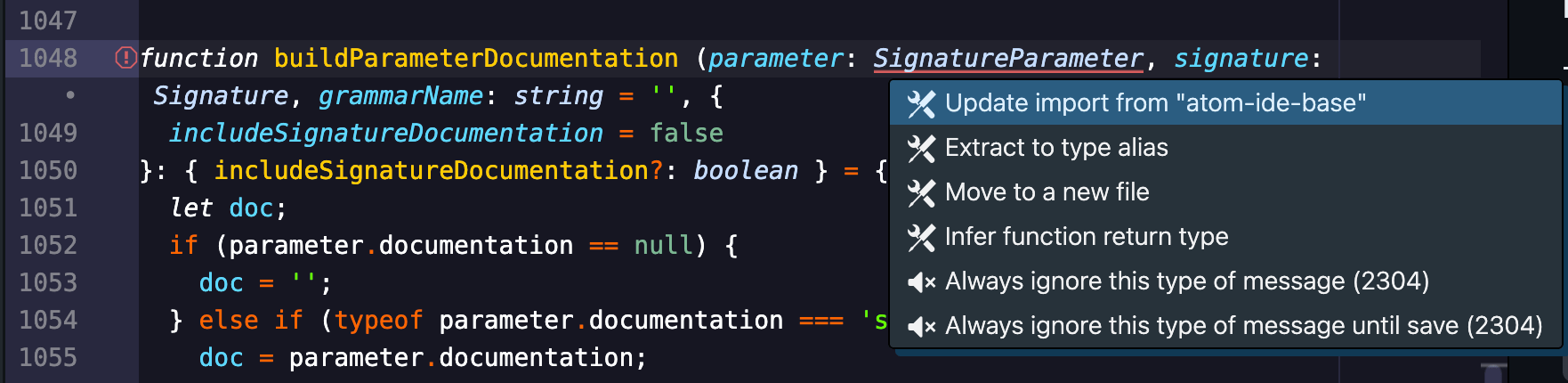
An intentions menu offering code actions to address the diagnostic error.
You can pair up the intentions package with a package that provides the intentions:list service.
Code formatting
Language servers often have the ability to reformat code according to certain conventions and specifications.
For instance, clangd has the ability to format C and C++ code in a number of different styles. In turn, the pulsar-ide-clangd package provides services like code-format.file, code-format.range, and code-format.onSave to offer formatting of code in different scenarios: file-wide (on demand), for the selected range of code (on demand), and whenever you save (automatically).
Reformatting a region of the buffer via pulsar-code-format.
In Pulsar, these can be used via pulsar-code-format and an IDE package that supports code-format.range or one of the other services listed above. (Other code-formatting packages exist, too.)
Highlighting references
IDEs are smart enough to identify “references” to a given token. Imagine putting your cursor within the name of a function you’ve written and having your editor highlight all other usages of that function — in the current buffer or other open buffers. Or asking “show me everywhere this function is used in my project” and seeing a list of usages presented in a style similar to project-wide find-and-replace.
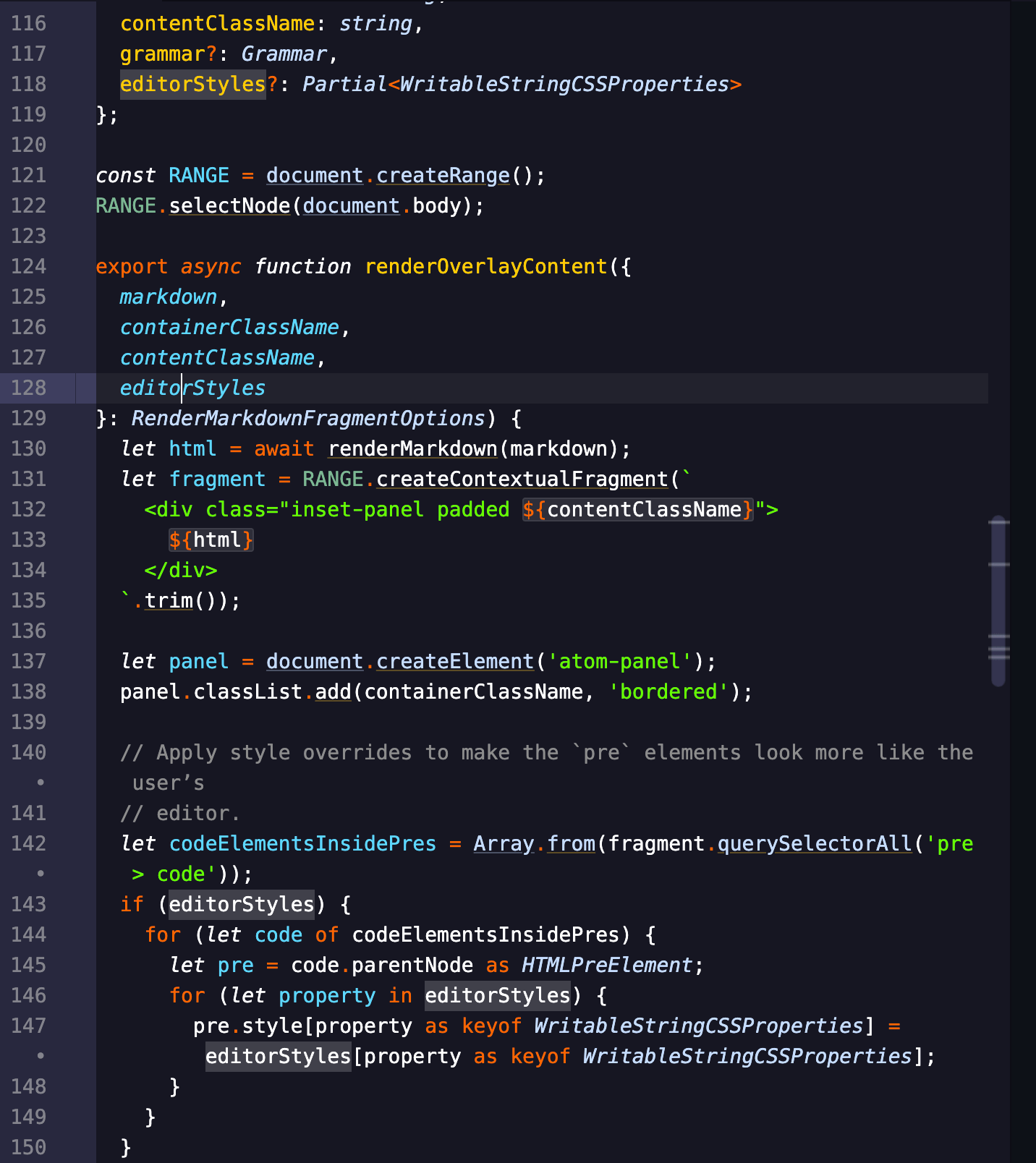
Using pulsar-find-references, other usages of editorStyles (the token under the cursor) are highlighted (and annotated in the scrollbar track).
This can be done with pulsar-find-references and an IDE package that supports the find-references service.
Renaming symbols
Some people prefer language-specific IDEs over generalize text editors because they support powerful refactoring features — for instance, the ability to rename a function and have all other references to that function update in an intelligent manner across the entire project. Features like these are less error-prone than project-wide find-and-replace and allow developers to refactor code with more confidence.
Renaming a symbol in several files at once via pulsar-refactor.
In Pulsar, intelligent symbol renaming can be accomplished with pulsar-refactor and an IDE package that supports the refactor service.
Hierarchical outline
We’ve seen how language servers often know about all the “symbols” (important things) in your project’s code. But that’s not all — many of them can represent those things in a hierarchical list. You can pair pulsar-outline-view (or another outline-view consumer) with an IDE package that provides the outline-view service and enjoy these outlines in your left or right dock.
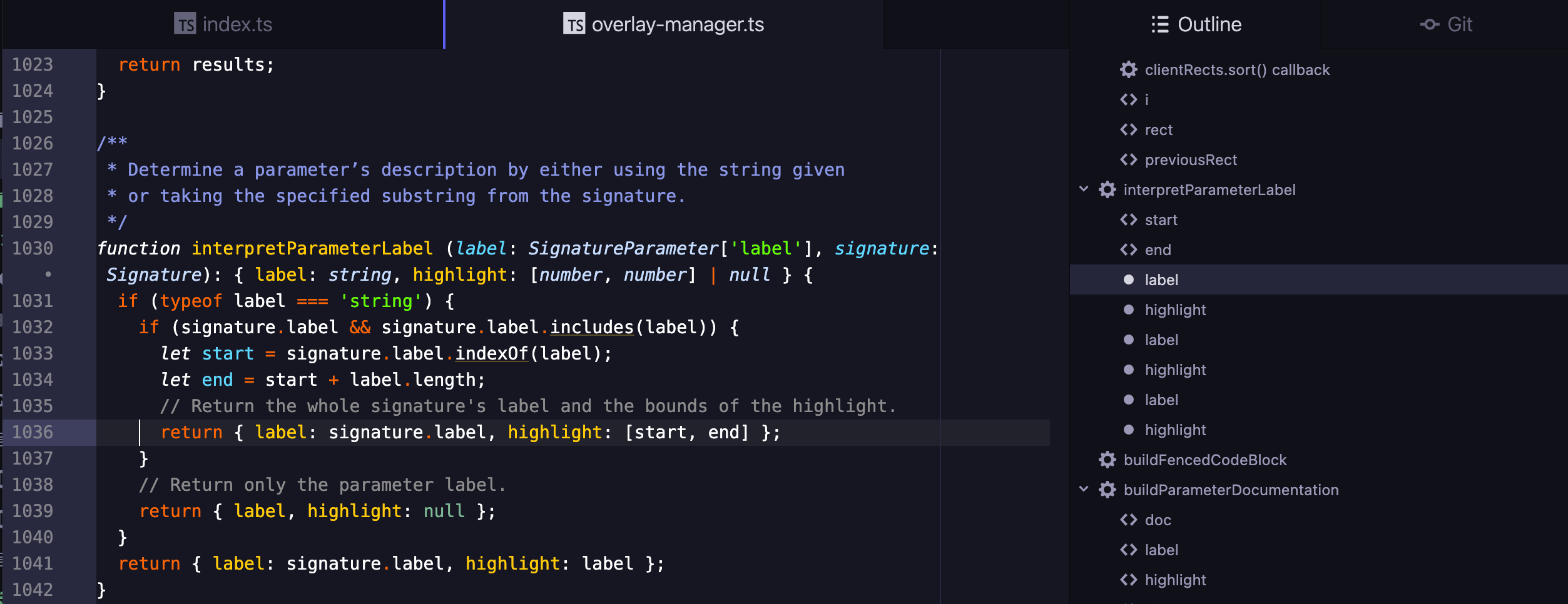
Using pulsar-outline-view, you can visualize your source files as trees, complete with collapsing/expanding of nodes.
Even when your language server doesn’t support hierarchical symbol lists — or when an IDE package isn’t even present! — pulsar-outline-view can fall back to showing a flat list of symbols. You might prefer this presentation to that of Symbols View: Toggle File Symbols.
Hover information
In other editors, you might be accustomed to hovering your mouse pointer over a given function and seeing information about it — like the parameters it takes, or an explanation of what it does.
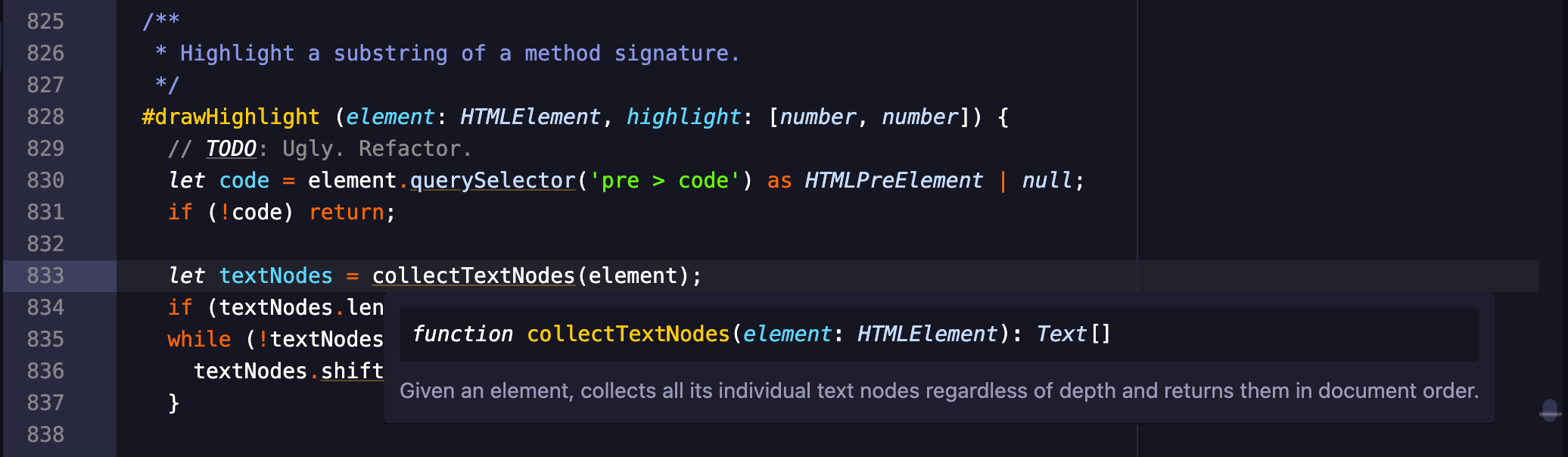
Using pulsar-hover, contextual help is offered in overlay form for the symbol under the cursor.
These kinds of contextual hints can be delivered with pulsar-hover and an IDE package that supports the hover service or the datatip service. (Other hover-hint packages exist, too.)
Progress indicators
IDE packages often perform background tasks and may want to notify the user about their progress.
The busy-signal package offers a way to do this. It places an icon in the status bar that will animate when such a task is in progress.
Pair it up with a package that consumes the atom-ide-busy-signal service.