
Checking for errors in developer tools
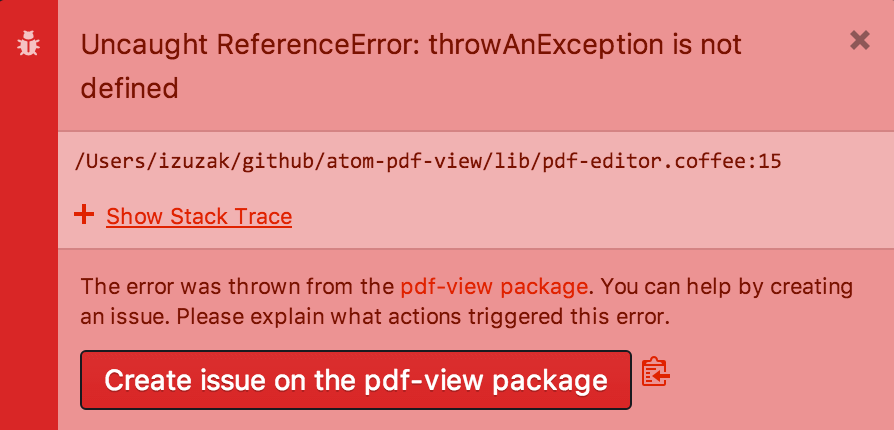
When an unexpected error occurs in Pulsar, you will normally see a red notification which provides details about the error and allows you to create an issue on the right repository:
Not all errors are logged with a notification. So if you suspect you’re experiencing an error, but there’s no notification, you can also look for errors in the Console tab of the developer tools. To access the Console tab, press Ctrl+Shift+I Alt+Cmd+I to open developer tools and then click the Console tab:
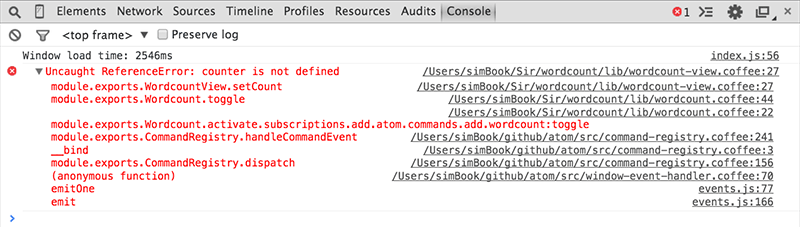
If there are multiple errors, you can scroll down to the bottom of the panel to see the most recent error. Or while reproducing an error, you can right click in the Console tab panel, select Clear console to remove all Console output, and then reproduce the error to see what errors are logged to the Console tab.