
Packages
As we mentioned previously, Pulsar itself is a core of functionality that can be controlled and customized via JavaScript. Many of the built-in features of Pulsar are implemented as core packages — for example, tree-view and settings-view.
In fact, a stock installation of Pulsar includes more than 80 packages. To list just a few examples:
- The welcome screen you see when you start Pulsar is implemented in the welcome package.
- Spell-checking is implemented in the spell-check package.
- The default themes are the packages one-dark-ui and one-dark-syntax.
- The palette for choosing a file to open in the current project is implemented by fuzzy-finder.
All these packages live in the main Pulsar repository on GitHub, but otherwise there’s little to distinguish them from the packages that are written by community members. Core packages have no special privileges; they use the same APIs that you have access to, as we’ll see in great detail in Hacking on the core.
This means that packages can be incredibly powerful! They can change everything from the look and feel of the entire interface to the basic behavior of core functionality.
In order to install a new package, you can use the Install tab in the now familiar settings view. Open up the settings view using Ctrl+,Cmd+,, click on the Install tab, and type your search query into the box labelled “Search packages.” Some suggestions are displayed even when the search field is empty.
The packages listed here have been published to https://packages.pulsar-edit.dev, which is the official registry for Pulsar packages. Searching on the settings view will run your search against the package registry and display any results that match your search terms.
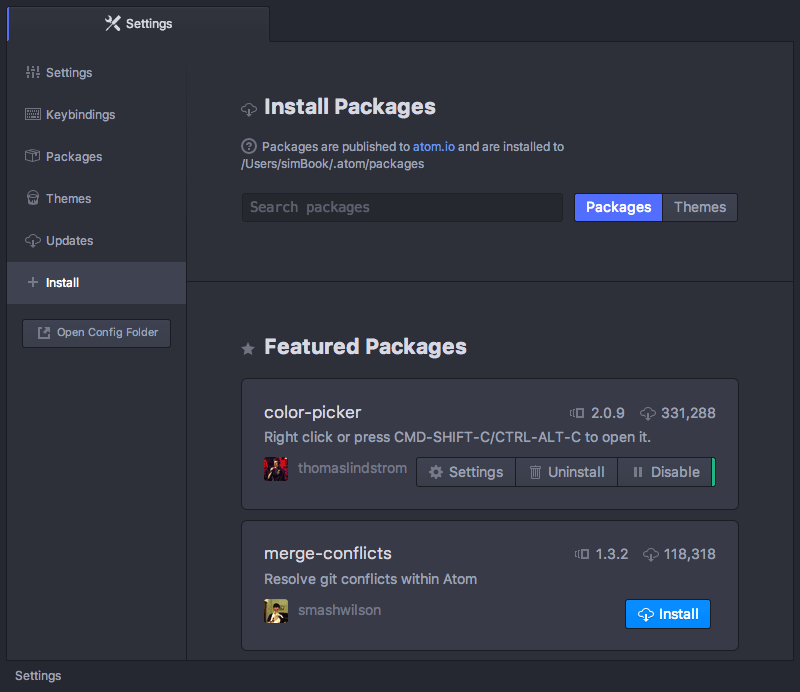
Each such package will have an Install button. Clicking it will download the package, install it, and activate it — all without a relaunch of Pulsar. Your editor will now have the functionality that the package provides.
Package settings
Once a package is installed in Pulsar, it will show up in the settings view under the Packages tab, along with all the pre-installed packages that come with Pulsar. You can type into the text field at the top of this view to filter the list of packages.
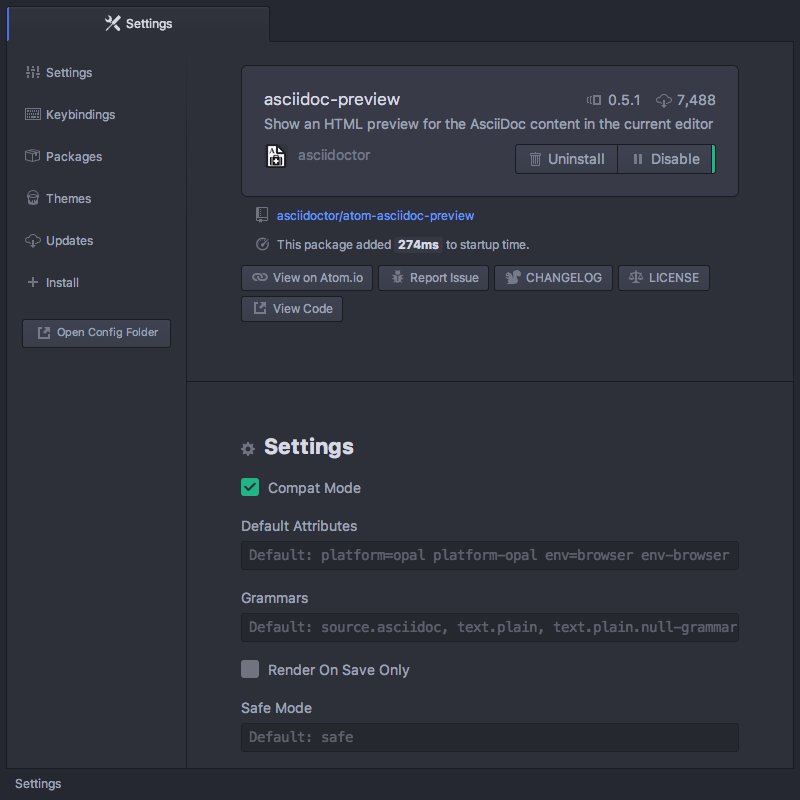
Clicking on the Settings button for a package will give you the settings screen for that package specifically. This page has several functions:
- You can use it to change a package’s settings (if it defines any).
- You can use it to find the package’s GitHub repository if you want to read its source code or submit a bug report.
- If the package includes a language grammar, you can use this page to control some language-specific settings (like Soft Wrap and Preferred Line Length).
- You can view the package’s key bindings and enable/disable them.
- You can view the package’s bundled snippets and enable/disable them.
- You can view the package’s README file.
It’s easy to keep your packages up to date! If a new version of any of your packages is released, Pulsar will automatically detect it and notify you via the status bar. You’ll be able to update the package from this screen or from the settings view’s Updates tab.
Pulsar themes
You can also find and install new UI themes and syntax themes for Pulsar from the settings view. The Install pane of the settings view allows you to search much like you would for a non-theme package, but with a toggle that narrows your search to return only themes.
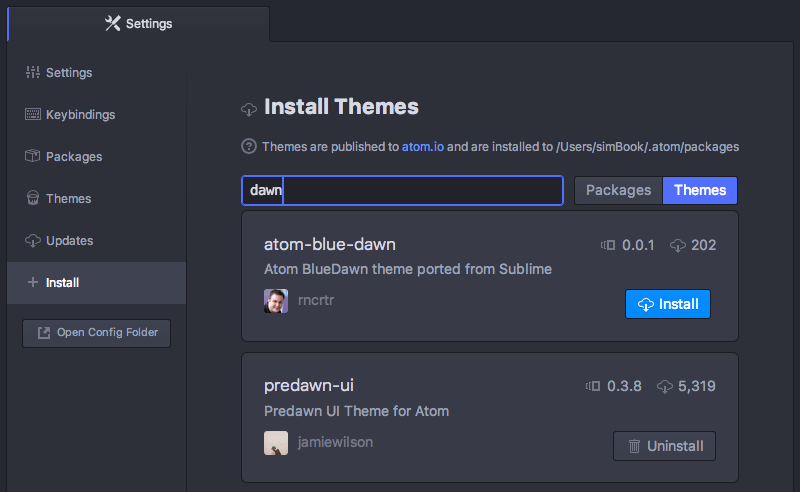
Clicking on the theme title will take you to the theme’s page on the package registry, where the package’s README will be visible. Most themes have a sample screenshot of the theme in their README; this lets you preview the look of the theme before installing it.
Clicking on Install will install the theme and make it available for activation in the Themes pane, as we saw in Changing the theme.
Command Line
You can also install packages or themes from the command line using ppm (Pulsar Package Manager). This is used by running either ppm <command> or pulsar -p <commmand>.
You can install packages by using the pulsar -p install command:
pulsar -p install <package_name>to install the latest version.pulsar -p install <package_name>@<package_version>to install a specific version.
For example, pulsar -p install minimap@4.40.0 installs the 4.40.0 release of the minimap package.
You can also use the command line to find new packages to install. If you run pulsar -p search, you can search the package registry for a search term.
$ pulsar -p search linter
> Search Results For 'linter' (30)
> ├── linter A Base Linter with Cow Powers (9863242 downloads, 4757 stars)
> ├── linter-ui-default Default UI for the Linter package (7755748 downloads, 1201 stars)
> ├── linter-eslint Lint JavaScript on the fly, using ESLint (v7 or older) (2418043 downloads, 1660 stars)
> ├── linter-jshint Linter plugin for JavaScript, using jshint (1202044 downloads, 1271 stars)
> ├── linter-gcc Lint C and C++ source files using gcc / g++ (863989 downloads, 194 stars)
> ...
> ├── linter-shellcheck Lint Bash on the fly, using shellcheck (136938 downloads, 280 stars)
> └── linter-rust Lint Rust-files, using rustc and/or cargo (132550 downloads, 91 stars)
You can use pulsar -p view to see more information about a specific package.
$ pulsar -p view linter
> linter
> ├── 3.4.0
> ├── https://github.com/steelbrain/linter
> ├── A Base Linter with Cow Powers
> ├── 9863242 downloads
> └── 4757 stars
>
> Run `pulsar -p install linter` to install this package.
Using ppm to install from other sources
By default, pulsar -p install foo will search the Pulsar Package Registry for a package called foo. But you can also install from other locations.
GitHub or Git Remotes
Pulsar can install from a GitHub repository or any valid Git remote URL.
Git remote
pulsar -p install <git_remote> [-b <branch_or_tag>]GitHub
pulsar -p install <github_username>/<github_project> [-b <branch_or_tag>]For example, to install the Generic-LSP package from GitHub, you could use either:
pulsar -p install https://github.com/mauricioszabo/generic-lsp/or
pulsar -p install mauricioszabo/generic-lspThis will use the current HEAD commit of the default branch (typically master or main). If you want to install a specific version from a branch or tag, use the -b option:
pulsar -p install https://github.com/mauricioszabo/generic-lsp/ -b v1.0.3