
Movement
While it’s pretty easy to move around Pulsar by clicking with the mouse or using the arrow keys, there are some keybindings that may help you keep your hands on the keyboard and navigate around a little faster.
Pulsar has support for all the standard Linux cursor movement key combinations. To go up, down, left or right a single character you can use the arrow keys.
In addition to single character movement, there are a number of other movement keybindings:
- Ctrl+Left - Move to the beginning of word
- Ctrl+Right - Move to the end of word
- Home - Move to the first character of the current line
- End - Move to the end of the line
- Ctrl+Home - Move to the top of the file
- Ctrl+End - Move to the bottom of the file
Pulsar ships with many of the basic Emacs keybindings for navigating a document. To go up and down a single character, you can use Ctrl+P and Ctrl+N. To go left and right a single character, you can use Ctrl+B and Ctrl+F. These are the equivalent of using the arrow keys, though some people prefer not having to move their hands to where the arrow keys are located on their keyboard.
In addition to single character movement, there are a number of other movement keybindings:
- Alt+Left or Alt+B - Move to the beginning of word
- Alt+Right or Alt+F - Move to the end of word
- Cmd+Left or Ctrl+A - Move to the first character of the current line
- Cmd+Right or Ctrl+E - Move to the end of the line
- Cmd+Up - Move to the top of the file
- Cmd+Down - Move to the bottom of the file
Pulsar has support for all the standard Windows cursor movement key combinations. To go up, down, left or right a single character you can use the arrow keys.
In addition to single character movement, there are a number of other movement keybindings:
- Ctrl+Left - Move to the beginning of word
- Ctrl+Right - Move to the end of word
- Home - Move to the first character of the current line
- End - Move to the end of the line
- Ctrl+Home - Move to the top of the file
- Ctrl+End - Move to the bottom of the file
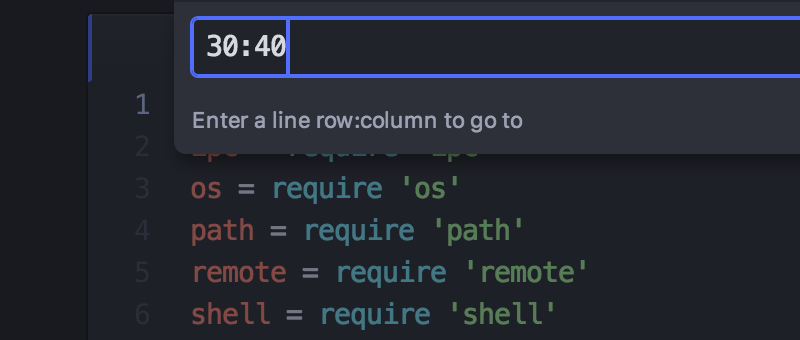
You can also move directly to a specific line (and column) number with Ctrl+G. This will bring up a dialog that asks which line you would like to jump to. You can also use the row:column syntax to jump to a character in that line as well.
Additional movement and selection commands
Pulsar also has a few movement and selection commands that don’t have keybindings by default. You can access these commands from the command palette, but if you find yourself using commands that don’t have a keybinding often, have no fear! You can easily add an entry to your keymap.cson to create a key combination. You can open keymap.cson file in an editor from the Edit > Keymap Pulsar > Keymap File > Keymap menu item.
For example, the command editor:select-to-previous-word-boundary is available in the command palette, but it’s not bound to any key combination. To create a key combination you’d add an entry in your keymap.cson file:
'atom-text-editor':
'ctrl-shift-e': 'editor:select-to-previous-word-boundary''atom-text-editor':
'cmd-shift-e': 'editor:select-to-previous-word-boundary''atom-text-editor':
'ctrl-shift-e': 'editor:select-to-previous-word-boundary'This will bind the command editor:select-to-previous-word-boundary to Ctrl+Shift+ECmd+Shift+E. For more information on customizing your keybindings, see Customizing keybindings.
Here’s a list of movement and selection commands that do not have a keyboard shortcut by default:
editor:move-to-beginning-of-next-paragraph
editor:move-to-beginning-of-previous-paragraph
editor:move-to-beginning-of-screen-line
editor:move-to-beginning-of-line
editor:move-to-end-of-line
editor:move-to-first-character-of-line
editor:move-to-beginning-of-next-word
editor:move-to-previous-word-boundary
editor:move-to-next-word-boundary
editor:select-to-beginning-of-next-paragraph
editor:select-to-beginning-of-previous-paragraph
editor:select-to-end-of-line
editor:select-to-beginning-of-line
editor:select-to-beginning-of-next-word
editor:select-to-next-word-boundary
editor:select-to-previous-word-boundary
editor:move-to-beginning-of-next-paragraph
editor:move-to-beginning-of-previous-paragraph
editor:move-to-beginning-of-screen-line
editor:move-to-beginning-of-line
editor:move-to-beginning-of-next-word
editor:move-to-previous-word-boundary
editor:move-to-next-word-boundary
editor:select-to-beginning-of-next-paragraph
editor:select-to-beginning-of-previous-paragraph
editor:select-to-beginning-of-line
editor:select-to-beginning-of-next-word
editor:select-to-next-word-boundary
editor:select-to-previous-word-boundary
editor:move-to-beginning-of-next-paragraph
editor:move-to-beginning-of-previous-paragraph
editor:move-to-beginning-of-screen-line
editor:move-to-beginning-of-line
editor:move-to-end-of-line
editor:move-to-first-character-of-line
editor:move-to-beginning-of-next-word
editor:move-to-previous-word-boundary
editor:move-to-next-word-boundary
editor:select-to-beginning-of-next-paragraph
editor:select-to-beginning-of-previous-paragraph
editor:select-to-end-of-line
editor:select-to-beginning-of-line
editor:select-to-beginning-of-next-word
editor:select-to-next-word-boundary
editor:select-to-previous-word-boundary
Navigating by symbols
Pulsar also allows you to navigate files by jumping to their important parts. For instance, you might find it intuitive to navigate Markdown files by names of headings, or to navigate JavaScript files by names of functions. We call those things symbols.
File symbols
To navigate by symbol, run the Symbols View: Toggle File Symbols command or press Ctrl+RCmd+R. This opens a list of all the symbols in the current file. You can filter this list much like how you filtered the fuzzy finder.
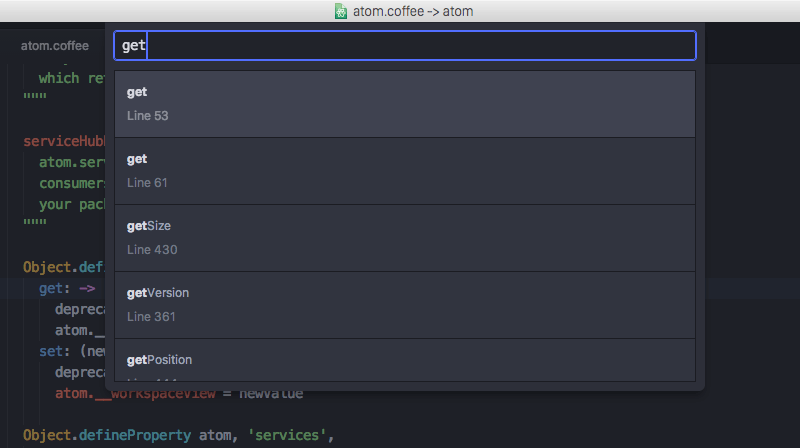
The navigate-by-symbols functionality is implemented in the symbols-view package and can be configured in its package settings.
Project symbols
Pulsar also offers you the Symbols View: Toggle Project Symbols command (bound to Ctrl+Shift+RCmd+Shift+R) for navigating your entire project by symbol.
This also enables two other powerful commands — Symbols View: Go To Declaration and Symbols View: Return From Declaration – which are bound to Ctrl+Alt+Shift+DownAlt+Cmd+Down and Ctrl+Alt+Shift+UpAlt+Cmd+Up. Using these commands, you can jump to the declaration of the symbol under the cursor, then jump back to your original position.
But to do this, Pulsar needs help. It’s easy for Pulsar to analyze a single open buffer for symbols, but harder for Pulsar to find symbols across your entire project, since most of those files won’t already be opened for editing. To do so, Pulsar relies on a package to act as a “provider” of project-wide symbol information.
Generating a tags file for project-wide symbols
One such package, symbol-provider-ctags, is bundled with Pulsar, and requires that you generate a tags file that holds your project’s symbol information.
You can generate a tags file by using the ctags utility. Once it is installed, you can use it to generate a tags file by running a command to generate it. See the ctags documentation for details.
Once you have your tags file generated, the three commands mentioned above will be enabled.
You can customize how tags are generated by creating your own .ctags file in your home directory, ~/.ctags %USERPROFILE%\.ctags. An example can be found here.
Other sources of project-wide symbols
If you don’t want to generate a tags file, you’ve got other options. Here’s a list of all packages in the registry that can act as symbol providers.
In particular, packages that wrap language servers can also act as project-wide symbol providers. Check the list linked above to see if your favorite language has such a package.
Bookmarks
Pulsar also has a great way to bookmark specific lines in your project so you can jump back to them quickly.
If you press Alt+Ctrl+F2Cmd+F2 or run the Bookmarks: Toggle Bookmark command, Pulsar will toggle a bookmark on the current line. (You can even bookmark a region of several lines by highlighting the text before you run the command.) When you add a bookmark, a small bookmark symbol becomes visible in the gutter, like on line 22 of the image below.
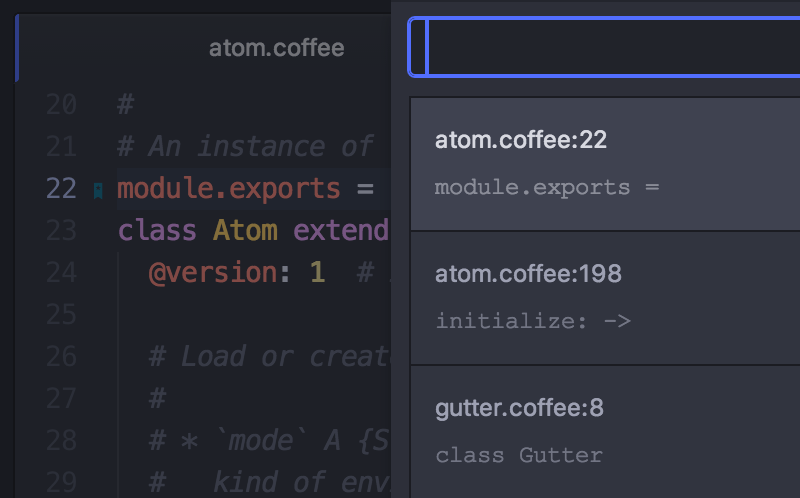
It’s important to understand that a bookmark is not bound to a specific line number, but rather to a specific range of text. If, in the example above, the user moved the cursor to line 20 and pressed Return, the module.exports = text would move down to line 23, and the bookmark would move with it!
You can set bookmarks throughout your project and use them to quickly find and jump to important lines. F2 and Shift+F2 (or Bookmarks: Jump To Next/Previous Bookmark) can be used to cycle forwards and backwards through all the bookmarks in the current file.
You can also invoke Bookmarks: View All (bound to Ctrl+F2) to see a fuzzy-filterable list of all your project’s bookmarks.
The bookmarks functionality is implemented in the bookmarks package.