
Snippets
Snippets are an incredibly powerful way to quickly generate repetitive text from a shortcut.
Snippets can be simple: type habtm, press Tab, and see it expand into has_and_belongs_to_many.
Snippets can be more complex, too. In an HTML file, type a, press Tab, and see it expand to
<a href="#"></a>with the # highlighted. After typing a URL, you can press Tab again to move to the area between the opening and closing tags. After typing some link text, press Tab a final time and you’ll see the cursor move past the closing </a>.
What is a snippet?
At their simplest, snippets function like text macros. If you routinely put placeholder text into files, you could define a snippet that did nothing but insert a paragraph of “Lorem ipsum…” text.
But snippets also have advanced features that allow you to cycle through “slots” in generated text. Each slot can have fallback content, and slots can even act to “transform” input in simple ways.
Triggering snippets
The simplest way to invoke a snippet is to give it a “prefix” — a unique string of text. Then, to trigger the snippet, type the trigger and press Tab (or invoke Snippets: Expand).
But there are two other ways to invoke snippets:
- The built-in autocomplete-snippets package will suggest snippets as you type. Selecting a snippet from the autocomplete-plus menu will trigger the snippet.
- A package can choose to give a snippet a unique command name instead of (or in addition to) a prefix. You can then invoke that command from the command palette or create a key binding for the command.
Many core and community packages come bundled with their own package-specific snippets. For example, the language-html package comes with dozens of snippets whose prefixes are the names of common HTML tags.
If you create a new HTML file in Pulsar, you can type html and press Tab. The html will be replaced with:
<!DOCTYPE html>
<html lang="en" dir="ltr">
	<head>
		<meta charset="utf-8" />
		<title></title>
	</head>
	<body></body>
</html>
It will also position the cursor in the lang attribute value so you can edit it if necessary.
The “slots” that we mentioned earlier are more formally called tab stops. Many snippets have multiple tab stops that can be visited in order with the Tab key. For instance, in the case of this HTML snippet: after the cursor is placed in the lang attribute value, the next press of Tab will move the cursor to the dir attribute value; the next Tab will move it to the middle of the title tag; then one more Tab will finally move the cursor to the middle of the body tag.
To see all the available snippets for the context of your cursor, choose Snippets: Available in the Command Palette.
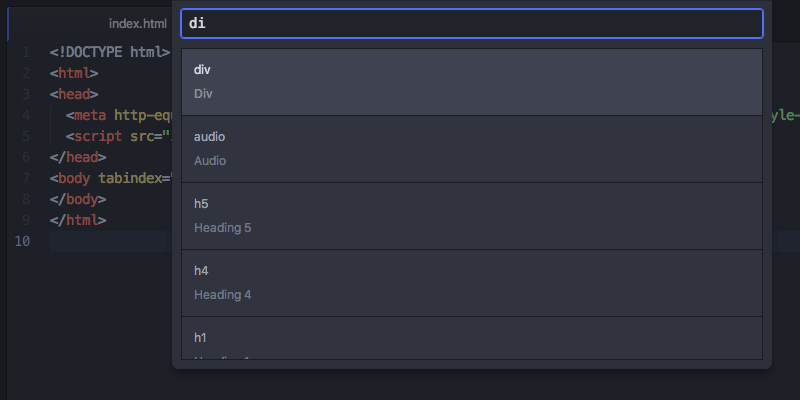
You can also use fuzzy search to filter this list down by typing in the selection box. Selecting one of them will execute the snippet where your cursor is (or multiple cursors are).
Snippets for prose
There are also a number of great snippets available for writing Markdown quickly.
If you type img and hit Tab you get a Markdown-formatted image embed code like ![](). If you type table and hit Tab you get a nice example table to fill out.
| Header One | Header Two |
| :--------- | :--------- |
| Item One   | Item Two   |
Although there are only a handful of Markdown snippets (b for bold, i for italic, code for a code block, etc), they save you from having to look up the more obscure syntaxes. Again, you can easily see a list of all available snippets for the type of file you’re currently in by choosing Snippets: Available in the command palette.
Creating your own snippets
So that’s pretty cool, but what if there is something the language package didn’t include or something that is specific to the code you write? Luckily it’s incredibly easy to add your own snippets.